
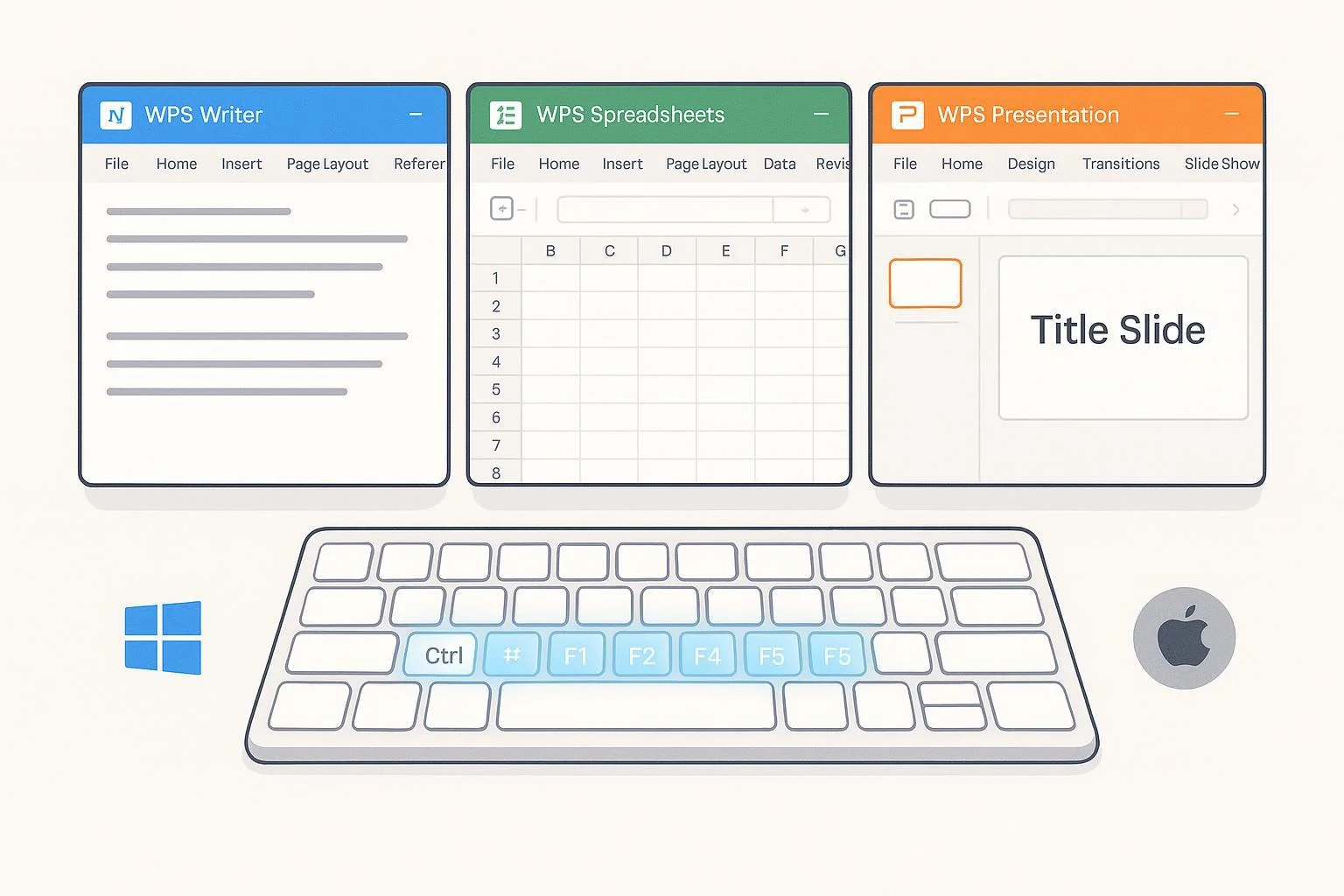
If you bounce between WPS Writer, Spreadsheets, and Presentation, this quick-reference puts the most useful keyboard shortcuts in one place—side‑by‑side for Windows and macOS, with brief notes on when they matter. Everything here was verified against official WPS help/academy pages where available and date‑checked in October 2025.
Quick platform tip: On many laptops, function keys (F1–F12) may require holding Fn or changing your keyboard preferences on macOS. See Apple’s guidance in the concise overview, “macOS function keys behavior” (2024).
Suite‑wide essentials (work almost everywhere)
Core commands like New, Open, Save, Undo, and Paste work consistently across the suite. WPS documents these on its academy page for Spreadsheets, and they generally apply suite‑wide on Windows; macOS uses the typical Command (⌘) equivalents.
- Evidence: See the WPS Academy quick guide “Common shortcut keys in WPS Spreadsheet” (accessed 2025) for Ctrl+N/O/S/P, Ctrl+Z/Y, Ctrl+C/X/V, F1, and more: WPS Academy — common Spreadsheet shortcuts.
| Action | Windows | macOS | Works in | Notes |
|---|---|---|---|---|
| New | Ctrl + N | Cmd + N | All | Create a new doc/workbook/presentation |
| Open | Ctrl + O | Cmd + O | All | Open file dialog |
| Save | Ctrl + S | Cmd + S | All | Save current file |
| Ctrl + P | Cmd + P | All | Print/setup dialog | |
| Undo / Redo | Ctrl + Z / Ctrl + Y | Cmd + Z / Cmd + Shift + Z | All | Redo on mac often uses Cmd+Shift+Z |
| Copy / Cut / Paste | Ctrl + C / X / V | Cmd + C / X / V | All | Standard clipboard actions |
| Help | F1 | F1 (may need Fn) | All | Opens in‑app help |
| Context menu | Shift + F10 | Shift + F10 (may need Fn) | All | Keyboard equivalent of right‑click |
Windows vs. macOS note: WPS doesn’t publish a single consolidated macOS list. The mac equivalents above follow platform convention (Ctrl → Cmd) and work in most cases.
WPS Writer: everyday editing and layout
The official Writer keyboard list covers text formatting, navigation, and document actions. That’s the authoritative baseline for this section.
- Evidence: WPS Help’s consolidated page “Keyboard Shortcuts in WPS Writer” (reviewed 2025) lists commands like Bold, Go To, Replace, Page Break, and alignment: WPS Help — Writer shortcuts.
| Action | Windows | macOS | Works in | Notes |
|---|---|---|---|---|
| Bold / Italic / Underline | Ctrl + B / I / U | Cmd + B / I / U | Writer | Quick emphasis formatting |
| Select All | Ctrl + A | Cmd + A | Writer | Selects entire document |
| Find / Replace | Ctrl + F / Ctrl + H | Cmd + F / Cmd + H | Writer | Search box and Replace dialog |
| Go To | Ctrl + G | Cmd + G | Writer | Jump to page/section/bookmark |
| Insert Page Break | Ctrl + Enter | Cmd + Enter | Writer | Forces next page |
| Align Left / Center / Right | Ctrl + L / E / R | Cmd + L / E / R | Writer | Paragraph alignment |
| Save / Print | Ctrl + S / Ctrl + P | Cmd + S / Cmd + P | Writer | Standard file ops |
Windows vs. macOS note: The Writer help page presents Windows‑style shortcuts. macOS generally maps Ctrl → Cmd, but if a combo doesn’t respond, check the menu label and try the menu’s shortcut hint.
WPS Spreadsheets: edit, check, and reference faster
WPS provides an official quick list for common keys (including F2 to edit a cell) and documents absolute reference toggling with F4 while editing a reference. These two sources anchor the essentials below.
- Evidence (core keys): WPS Academy’s “Common shortcut keys in WPS Spreadsheet” confirms F1 Help, F2 Edit cell, F7 Spell check, F9 Recalculate, and standard Ctrl+ commands: WPS Academy — common Spreadsheet shortcuts.
- Evidence (absolute references): While editing a cell reference, pressing F4 cycles between relative/mixed/absolute ($) states, per WPS Academy’s tutorial reviewed in 2025: WPS Academy — absolute cell reference (F4).
| Action | Windows | macOS | Works in | Notes |
|---|---|---|---|---|
| Edit active cell | F2 | F2 (may need Fn) | Spreadsheets | Enters edit mode in the cell |
| Spell check | F7 | F7 (may need Fn) | Spreadsheets | Checks spelling in selection/sheet |
| Recalculate | F9 | F9 (may need Fn) | Spreadsheets | Forces calc refresh |
| Absolute reference toggle | F4 (while editing a reference) | F4 (may need Fn; while editing) | Spreadsheets | Cycles $A$1 → A$1 → $A1 → A1 |
| New/Open/Save/Undo, etc. | Ctrl + N/O/S/Z… | Cmd + N/O/S/Z… | Spreadsheets | Standard suite‑wide behavior |
| Context menu | Shift + F10 | Shift + F10 (may need Fn) | Spreadsheets | Keyboard right‑click |
Power tip: F‑keys on some Macs share media/functions. Hold Fn or enable “Use F1, F2, etc. keys as standard function keys” in macOS settings to make F2/F4/F7/F9 work consistently.
WPS Presentation: slide show control at your fingertips
WPS Academy documents the key slideshow controls—start from beginning or current slide, jump to a specific slide, and quickly black/white out the screen while presenting.
- Evidence: The academy guide “Must‑have shortcut tricks in showing slides” (reviewed 2025) lists F5, Shift+F5, number+Enter, B, W, Ctrl+H, and Esc: WPS Academy — slideshow shortcuts.
| Action | Windows | macOS | Works in | Notes |
|---|---|---|---|---|
| Start from beginning | F5 | F5 (may need Fn) | Presentation | Begins slide show |
| Start from current slide | Shift + F5 | Shift + F5 (may need Fn) | Presentation | Handy during rehearsals |
| Jump to slide n | Type number + Enter | Type number + Enter | Presentation | Quickly navigate during Q&A |
| Black screen / White screen | B / W | B / W | Presentation | Temporarily blank display |
| Hide pointer | Ctrl + H | Ctrl + H | Presentation | Keeps focus on slide content |
| End slide show | Esc | Esc | Presentation | Exits slide show |
Presenter note: Some keyboards show media controls on the F‑row. If F5/Shift+F5 don’t respond, hold Fn or adjust function‑key settings.
Customize keyboard shortcuts (Writer)
You can view and remap many commands in WPS Writer. As of our 2025 check, WPS’s official tutorial focuses on Writer; broad remapping in Spreadsheets/Presentation isn’t documented.
- Evidence: Step‑by‑step instructions are in the official tutorial “How to customize shortcut keys in WPS” (reviewed 2025): WPS Academy — customize shortcuts (Writer).
Quick steps in Writer:
- Open Writer and go to Menu → Options → Customize Ribbon → Customize.
- Choose a command category, then a specific command.
- Click the shortcut box, press your new key combo, and Assign.
- Save and test. If a combo conflicts with the OS (e.g., mac global shortcuts), choose an alternative.
Scope note: The tutorial and UI focus on Writer. If you don’t see similar controls in Spreadsheets/Presentation, they may not support full keyboard remapping.
Methodology, platform considerations, and update note
- Verification: Shortcuts were compiled from official WPS Help/Academy materials and quick in‑app checks on current builds (Windows/macOS). For Mac laptops, function‑key behavior can depend on system settings; Apple’s guidance explains how to use F‑keys as “standard” keys: Apple Support — macOS function keys behavior.
- Currency: Date‑checked October 2025. Features and shortcuts can change with updates; UI language, regional layouts, or custom OS mappings may alter behavior. When in doubt, check the app’s menus (they display the current shortcut next to each command) or press F1 to search in‑app Help.
FAQ (quick clarifications)
- Why doesn’t F2 or F4 work on my Mac? Often the F‑row is mapped to media/brightness. Hold Fn or switch your keyboard settings to use F‑keys as standard.
- Do all Windows shortcuts map to Cmd on Mac? Many do (Ctrl → Cmd for common actions), but not all. Always confirm via the menu label in your WPS app.
- Can I customize Spreadsheets or Presentation shortcuts? WPS’s official tutorial covers Writer. Broader remapping isn’t currently documented for the other apps.
— End of directory —