
Modern teamwork rarely follows a straight line. Proposals get revised while stakeholders comment, legal teams request tracked edits, and subject‑matter experts contribute asynchronously across time zones. To replace the fragile “email attachment” workflow, teams rely on cloud-based real-time collaboration tools — software that supports shared document editing, commenting, and versioning in a continuously updated environment.
This guide explains the overseas tools that support Word-style collaborative editing, step-by-step workflows, and best practices for secure and efficient co-authoring.
1) Real‑Time Collaborative Editing Tools (Overseas / Global)
These tools enable multiple people to work on the same document simultaneously. They differ in features, format support, and collaboration capabilities.
| Tool | Real‑Time Collaboration | Word (.docx) Compatibility | Remarks |
|---|---|---|---|
| Google Docs (Google Docs) | Yes | Via import/export | Strong real-time collaboration and sharing features |
| Microsoft 365 + Word Online (Word) | Yes | Native | Best fidelity for Word files; integrates with OneDrive/SharePoint |
| WPS Office (WPS Office) | Yes | Native | Browser + desktop; real-time edit & cloud sync supported |
| Zoho Writer (Zoho Writer) | Yes | Via import/export | Part of Zoho Workplace |
| ONLYOFFICE Docs (ONLYOFFICE) | Yes | Yes | Strong compatibility + integrations |
| Etherpad (Etherpad) | Yes | Text-only | Open-source, lightweight editor |
Google Docs — Collaborative Native Web Editing
- A browser-based word processor that allows multiple users to edit simultaneously in real time.
- Includes comments, suggestion mode, and version history.
- Documents can be shared with flexible permission levels.
Best for: teams who need fast, simple collaboration without worrying about file format fidelity.
Microsoft 365 + Word Online — Full Fidelity Word Editing
- When stored in OneDrive or SharePoint, Word documents support co-authoring: multiple collaborators can see changes and cursor presence in real time.
- Desktop and web clients both participate in shared editing.
Best for: formal documents where Word-specific features (track changes, advanced layouts) matter.
WPS Office — Cloud Editing Across Devices
WPS Office and its online editor support real-time collaboration on documents stored in the cloud. Multiple users can work on the same file simultaneously, with cloud sync and shared editing history.
Key collaborative capabilities of WPS Office:
- Real-time co-editing online: Edit simultaneously in the WPS Online Editor without installing software. (WPS Online Editor Guide)
- Cloud storage & sync: Documents saved to WPS Cloud are automatically synchronized across devices. (WPS Cloud)
- Comments and threaded discussions: Team members can leave project-specific feedback inside the document. (WPS Online Editing Tips)
- Version history and recovery: Previous document versions are retained and can be restored if needed. (WPS Version History)
- Permission controls: Share links with editing or viewing rights; restrict access to designated teammates only. (WPS Co-editing)
Best for: teams that want a familiar Word-like interface with browser-based collaboration and cross-platform support.
Zoho Writer & ONLYOFFICE
- Zoho Writer is part of a web-based productivity suite with strong real-time co-editing and versioning.
- ONLYOFFICE Docs supports collaborative editing in cloud deployments and integrates with services like Nextcloud, making it flexible for enterprises.
2) How Online Collaboration Works (Key Concepts)
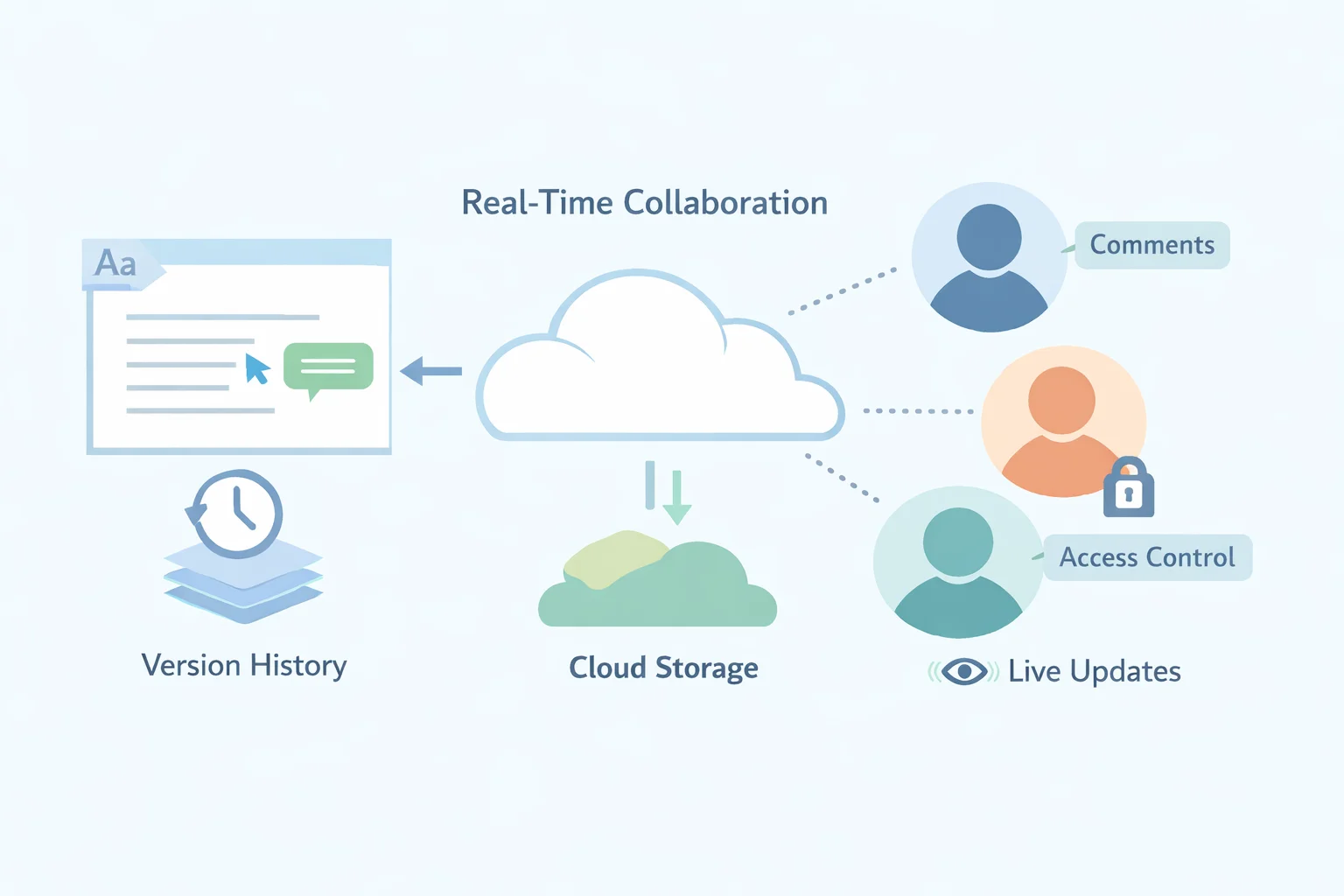
All these tools rely on three key pillars:
- Cloud storage + continuous saving – Document state is saved automatically to the cloud so edits are persistent and shared.
- Identity-based access control – Permissions determine who can view, edit, or comment.
- Presence & updates – Users can see who else is in the document and view live changes.
Understanding these principles makes it easier to choose and manage the right tool for your team.
3) Step‑by-Step Collaborative Editing Workflows
A) Google Docs
- Upload or create a document in Google Drive.
- Share the document with collaborators (“Editor,” “Commenter,” or “Viewer”).
- Use real-time typing, comments, and suggestion mode to work together.
B) Microsoft 365 + Word Online / Desktop
- Save the Word document to OneDrive or SharePoint.
- Enable AutoSave (web or desktop).
- Click Share → invite collaborators with “Can edit” permission.
- Team members open the shared link to co-edit in real time.
C) WPS Office (Cloud)
- Upload the document to WPS Cloud or open via the WPS Online Editor. (WPS Online Editor)
- Enable Co-editing by switching the file to cloud mode.
- Share a link with collaborators and set permissions (editing/viewing).
- Collaborators can edit, comment, and discuss within the shared document.
- Use version history to restore prior states if needed.
4) Permissions, Security, and Best Practices
Effective collaboration relies on tool configuration and operational habits:
- Internal teams: Use identity-based sharing with strict “edit” permissions only for contributors.
- External collaborators: Prefer “specific people” links rather than public links.
- High-risk content: Apply enterprise policies or sensitivity labels to protect sensitive information while preserving collaboration workflows.
- Document organization: Maintain clear folder structures to avoid duplicate or conflicting files.
5) Choosing the Right Tool
| Situation | Recommended Tool |
|---|---|
| Fast, light-weight collaborative writing | Google Docs |
| Formal Word-format documents with review process | Word Online / Desktop |
| Word-like experience with online collaborative features | WPS Office |
| Enterprise with self-hosted cloud infrastructure | ONLYOFFICE / Nextcloud |
| Open source or simple text editing | Etherpad |
6) Troubleshooting Common Collaboration Issues
- Changes not showing for everyone → Ensure all collaborators are editing the shared cloud version, not local copies.
- Permission errors → Check that invitees have “Can edit” access.
- Conflicting versions → Use version histories to reconcile or restore prior document states.
7) Practical Access Options for Occasional Users
Some collaborators only need temporary access to productivity software. For these cases:
- ShortKey provides short-term access to Microsoft Word and other productivity software.
- This allows contractors, seasonal staff, or occasional contributors to join real-time collaboration without full-time licensing commitments.
- Always ensure compliance with organizational policies when using temporary access.
Summary
Modern collaboration is powered by cloud-based editing platforms that go beyond email attachments. Whether you choose Google Docs for simplicity, Word Online for precision and fidelity, or WPS Office for a familiar Word-like collaborative environment, the goal is the same: keep your team working together efficiently in real time with shared visibility, clear permissions, and recoverable history.
For occasional users, platforms like ShortKey make it easier to participate in collaborative workflows without long-term licensing commitments.