
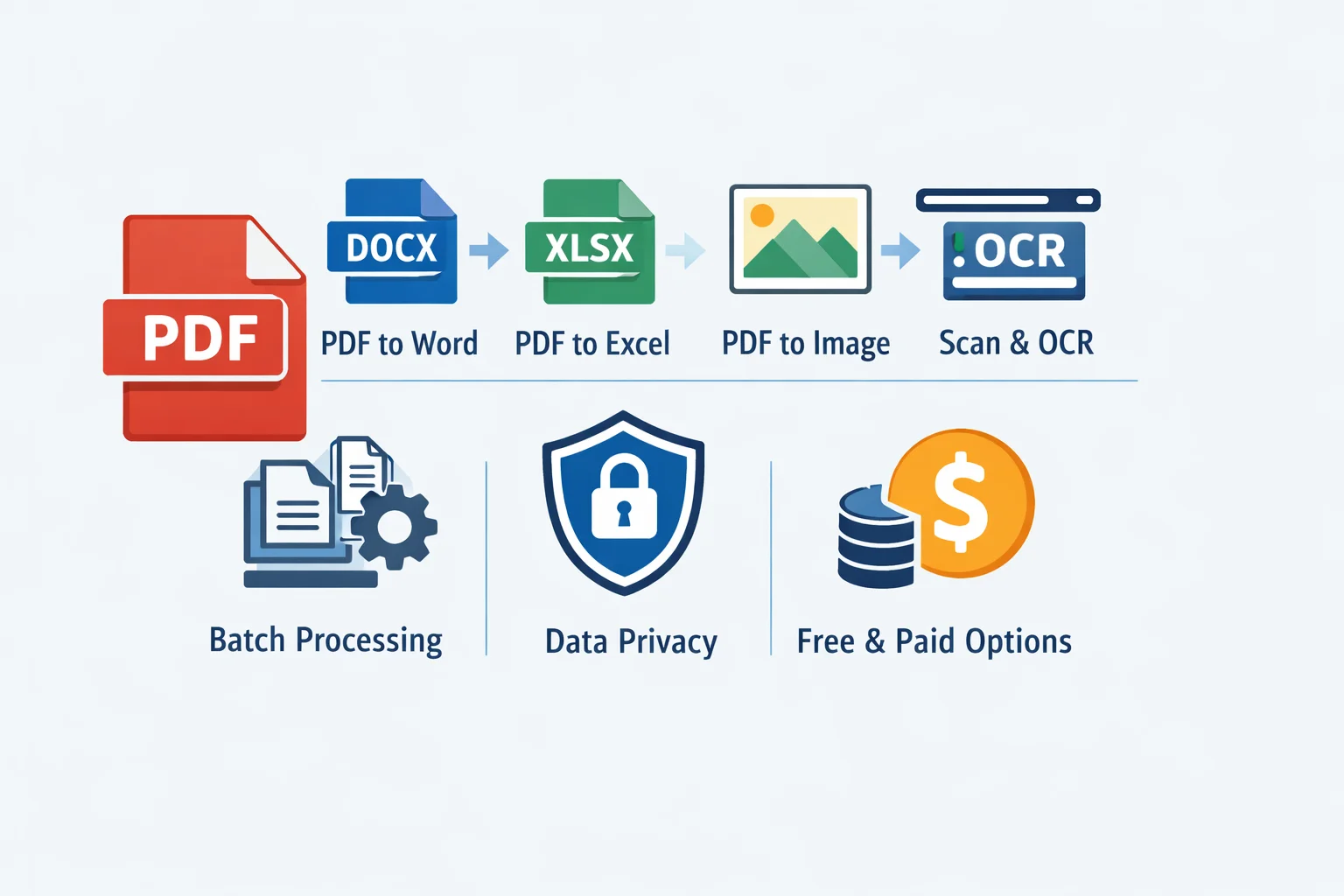
PDFs are everywhere—contracts, bank statements, academic papers, invoices, marketing one-pagers. And yet, the moment you need to edit, extract, or reuse what’s inside, the “fixed layout” strength of PDF becomes a friction point. This guide helps you choose the right PDF converter—whether you need a quick online conversion, a desktop suite for batch work, or OCR that can turn scanned documents into searchable text—while staying mindful of accuracy, privacy, and total cost.
What is a PDF and why convert it?
What a PDF is (in plain English): A format designed to preserve layout so documents look consistent across devices and printers. The PDF spec is standardized (PDF 2.0 is defined in ISO 32000-2:2020 — PDF 2.0 core specification), which is why PDFs are so stable for sharing—but not always easy to edit.
Why people convert PDFs (the practical reasons):
- Edit text in familiar apps: “PDF to Word” is the fastest way to revise text-heavy documents without retyping.
- Extract data: “PDF to Excel” is critical when tables are trapped in statements, reports, or invoices.
- Reuse assets: “PDF to image” exports (JPG/PNG) help for slides, social posts, thumbnails, or archives.
- Make scanned files usable: OCR (Optical Character Recognition) converts scanned PDFs into searchable and editable text.
- Restructure before converting: Splitting, merging, rotating, and compressing often improves conversion results.
Common conversion directions:
- PDF → Word (DOCX), Excel (XLSX), PowerPoint (PPTX)
- PDF → JPG/PNG images
- Images → PDF
- Scanned PDF → editable text (OCR)
When conversion is not ideal:
- Highly designed layouts (brochures, magazines) may convert imperfectly—expect manual cleanup.
- Confidential documents may be unsafe to upload to browser tools; offline conversion is often the better option.
- Some PDFs include restrictions or security settings that limit copying and converting.
Types of PDF converters (and when to use each)
Online PDF converters (browser-based)
- Best for: quick one-off tasks, simple files, no installation.
- Typical constraints: upload limits, daily quotas, and privacy considerations (your file leaves your device).
- Decision tip: For non-sensitive documents, browser tools can be efficient; for regulated or confidential content, prefer offline tools.
Desktop PDF suites (Windows/macOS)
- Best for: frequent conversion, complex layouts, large files, batch processing, and offline workflows.
- Why they often win on quality: they usually offer better OCR engines, table detection, and export controls.
Integrated office suites with PDF tools
- Best for: people who want one productivity environment for writing + conversion + edits.
- Example: WPS Office includes PDF workflows alongside documents/spreadsheets.
AI-enhanced converters
- Best for: improving OCR accuracy, detecting structure (headings/tables), and assisting with summarization/extraction.
- Reality check: “AI” can reduce cleanup time, but it doesn’t eliminate verification—especially for financial/legal documents.
What to evaluate when choosing a PDF converter
Use this checklist to avoid “download-first, regret-later” decisions.
Conversion accuracy and layout fidelity
- Look for performance with: multi-column text, headers/footers, footnotes/endnotes, embedded fonts, images, and mixed languages.
- If the original PDF is standards-compliant and well-structured, fidelity improves; PDFs can vary widely by how they were produced.
OCR quality (for scanned PDFs)
- Must-have capabilities: multi-language OCR, recognition of tables, and output options (searchable PDF vs editable DOCX/XLSX).
- Input quality matters: scanning guidance like the U.S. federal FADGI Technical Guidelines for Digitizing Cultural Heritage Materials (2023) is a useful benchmark when you control scanning settings (e.g., adequate resolution, clean capture).
Supported formats and directions
- Confirm the tool supports your real workflow: PDF→Word/Excel/PowerPoint/Images, Images→PDF, and in some cases archival profiles like PDF/A.
- For preservation-oriented exports, PDF/A is standardized (see ISO 19005-1 (PDF/A-1) — Long‑term archiving profile).
Batch processing and automation
- If you convert dozens of files: check for batch export, “watch folders,” and consistent naming rules.
- Teams may also care about deployment, admin controls, and audit logs.
Limits and performance
- Online tools can throttle by file size or pages.
- Desktop tools can be faster for large PDFs because processing is local (and not dependent on upload bandwidth).
Privacy and compliance
- If documents contain PII, contracts, medical info, or internal reports, prioritize local processing and clear retention policies.
- A solid baseline for handling sensitive data is NIST SP 800‑122 — Guide to Protecting the Confidentiality of PII, which emphasizes safeguards and minimizing exposure.
Pricing model and commitment
- Free tools: convenient, but limited.
- Paid tools: accuracy, OCR, and batch features tend to be materially better.
- If you only need a converter occasionally, look for official trials or time-limited access options rather than committing to a long subscription.
Cross-platform support
- Windows/macOS desktop, web access, and mobile apps matter if you work across devices.
- Consider how files move: local storage vs cloud sync vs enterprise repositories.
Ease of use and “extras”
- Beyond conversion, many buyers care about editing, annotation, e-signatures, form filling, compression, redaction, and compare tools.
Vendor reputation and support
- Prefer vendors with up-to-date documentation, clear security statements, and a history of maintaining PDF standards compatibility.
PDF converter comparison table: Mainstream options at a glance
Notes: Features and availability change frequently by region and plan tier. Use official product pages for the latest details, and test with representative files (especially tables + scans).
| Product | Platforms | Key conversions | OCR quality | Batch processing | Privacy model | Price model | Best for |
|---|---|---|---|---|---|---|---|
| Adobe Acrobat Pro | Win/macOS/Web/Mobile | PDF↔Office, PDF→Images, edit/export | Strong (industry benchmark) | Yes | Local + cloud options | Subscription | Highest overall polish, enterprise workflows |
| WPS Office | Win/macOS/Linux/Mobile | PDF→Word/Excel/PPT, export images (varies by edition) | Good (plan-dependent) | Often available in paid tiers | Local + optional cloud | Free + paid/subscription | Budget-friendly suite + PDF tasks in one place |
| Foxit PDF Editor | Win/macOS | Strong Office exports, editing | Strong | Yes | Primarily local (features vary) | Subscription/perpetual options (varies) | Business users needing robust editing + export |
| Nitro PDF Pro | Win/macOS | PDF→Word/Excel/PPT, edit | Strong | Yes | Local/enterprise options | Subscription | Teams converting lots of Office-style PDFs |
| Smallpdf | Web | PDF↔Office, compress, split/merge | Limited/plan-dependent | Limited | Cloud processing | Free + subscription | Convenience for non-sensitive, simple jobs |
| iLovePDF | Web/Desktop/Mobile | Convert + organize PDFs | Limited/varies | Better with desktop app | Cloud + some local options | Free + subscription | High-volume light conversions + PDF utilities |
| Sejda PDF | Web/Desktop | Convert + edit + pages/tools | Limited/varies | Moderate | Web (cloud) or desktop local | Free limits + subscription | Occasional editing + conversions with flexibility |
| Microsoft Word (PDF import) | Win/macOS | PDF→editable Word document | Not a full OCR suite | No | Local | Included with Microsoft 365/Office | Quick edits for text-centric PDFs |
For tool-specific conversion behavior, vendor documentation is often the most reliable reference. For example, Microsoft explains the expectations and limitations of importing PDFs into Word in its official guide on opening PDFs in Word, and Adobe documents how Acrobat exports tables in its help article on converting PDF to Excel.
Scenario-based recommendations: Which PDF converter is best for you?
Occasional/home users (a few files per month, simple conversions)
- Prefer: online converters for non-sensitive documents, or Microsoft Word’s built-in import for quick edits.
- If you hit limits often: consider a paid plan for one month during peak needs rather than staying subscribed all year.
Students and researchers
- Prefer: reliable PDF→Word plus OCR for scanned papers.
- Look for: citation-friendly text flow, multi-language OCR, and stable formatting.
- Practical tip: if your PDFs are scanned, re-scanning at better quality can matter more than switching tools.
Finance/data teams (table-heavy PDFs)
- Prefer: dedicated PDF→Excel modes and strong table detection (usually desktop suites).
- Workflow tip: split a long statement into smaller ranges before converting, and verify totals after export.
Legal/compliance (sensitive documents)
- Prefer: on-device conversion, strong access control, and professional redaction tools.
- Redaction is not the same as drawing black boxes—follow best practices from industry groups like the PDF Association’s technical resources when evaluating tools and processes.
Creative/marketing (visual assets)
- Prefer: predictable “PDF to image” output with control over resolution and color.
- Tip: export at higher resolution when images will be reused in slides or social platforms to avoid blur.
Remote/field work
- Prefer: cross-platform mobile scanning and quick conversion, but be cautious uploading client documents on public networks.
- If you must use cloud tools: prioritize clear security statements, encryption, and retention controls.
How to use popular PDF converters: quick tutorials
WPS PDF/WPS Office: Convert PDF to Word (DOCX)
- Install and open WPS Office.
- Open your PDF inside the WPS PDF feature/module (names vary by version).
- Choose Export/Convert → PDF to Word (DOCX).
- If the file is scanned, enable OCR and select the correct language(s).
- Export and open the DOCX in Word (or WPS Writer) to review formatting, headings, and spacing.
Reference: WPS provides an official walk-through in its help article on converting PDF to Word.
WPS PDF/WPS Office: Convert PDF to Excel
- Open the PDF in WPS Office.
- Select PDF to Excel (or Export → Excel/XLSX, depending on edition).
- If available, enable table-focused conversion options (helpful for statements/invoices).
- Export to XLSX and verify column alignment, merged cells, and numeric formats.
- Sanity-check the output: compare row counts and totals against the original PDF.
For context on how dedicated converters approach spreadsheet exports, Adobe’s documentation on PDF to Excel conversion outlines common expectations and verification steps.
Online PDF converter: PDF to Images (JPG/PNG)
- Open a reputable online converter such as Smallpdf or iLovePDF.
- Upload the PDF and select PDF → JPG or PDF → PNG.
- Choose page range and (if offered) output quality/resolution.
- Convert and download the images, then spot-check for missing icons/fonts.
Privacy tip: avoid uploading contracts, IDs, medical records, or internal reports to browser converters. If you need a standards/terminology baseline, the IETF’s RFC 8118 — The application/pdf media type provides helpful technical context on PDF and related profiles.
OCR: Turn a scanned PDF into searchable, editable text
- Open the scanned PDF in a tool that supports OCR (commonly desktop suites).
- Choose OCR and select language(s).
- Pick output type:
- Searchable PDF (keeps original look, adds a text layer), or
- Editable Word/Excel (more flexible, but may need cleanup).
- Review errors—especially in tables, small fonts, and low-contrast scans.
- If results are poor, re-scan at better quality; capture guidelines such as the FADGI digitization recommendations are a strong reference point when you control the scanning workflow.
Conversion quality and troubleshooting tips
Start with a better source
- Clean scans, straight pages, and adequate resolution can drastically improve OCR. If you can re-scan, do it.
Split large PDFs before converting
- Convert in logical chunks (e.g., per chapter or per statement section) to reduce crashes and improve table detection.
Choose the right “mode”
- If your priority is editable text, pick a text-flow option.
- If your priority is visual fidelity, choose layout-preserving export and accept more manual edits later.
For tables, use dedicated PDF→Excel features
- Generic “PDF→Word then copy tables” is usually slower and less accurate than a converter’s Excel export mode.
Validate before sending
- Compare the converted output side-by-side with the original PDF: totals, dates, headers, and page breaks are common failure points.
Privacy and compliance best practices
Prefer on-device conversion for confidential documents
- This reduces exposure and simplifies your data map.
Minimize what you upload and retain
- Data minimization is a core security principle emphasized in guidance like the FTC’s Protecting Personal Information: A Guide for Business.
Use recognized frameworks for sensitive data
- If your files include PII, follow controls aligned to NIST SP 800‑122: access controls, encryption, and least exposure.
If you operate under regulated rulesets
- Healthcare workflows should map to the HHS HIPAA Privacy Rule overview when PHI is involved.
- For EU contexts, accountability obligations and documentation expectations are summarized by the European Commission in Demonstrating GDPR compliance.
Redaction requires real redaction tools
- Proper redaction removes underlying text/data rather than covering it visually. Consult neutral best-practice resources such as the PDF Association technical resources when building a workflow.
FAQs about choosing and using a PDF converter
Which PDF converter is best?
“Best” depends on the job. If you prioritize maximum accuracy and professional features (OCR, batch, redaction), desktop suites like Adobe Acrobat, Foxit PDF Editor, or Nitro PDF Pro are common picks. If you just need a quick conversion for a non-sensitive file, online tools like Smallpdf can be enough.PDF converter free vs. paid—what changes in practice?
Paid tiers typically deliver stronger OCR, fewer limits, better table extraction (PDF→Excel), batch workflows, and more reliable formatting—plus clearer support and enterprise options.What’s the easiest way to convert a PDF to Word?
For simple text PDFs, Microsoft Word can import PDFs directly (see Microsoft’s official instructions). For complex layouts or scanned files, use a dedicated PDF suite with OCR.What’s the best software for PDF to Excel?
Tools with dedicated PDF→Excel export and table recognition usually perform better than general converters. Adobe documents its approach and expected outcomes in its guide to converting PDF to Excel.Can Microsoft Word convert PDFs reliably?
Word works well for many text-centric PDFs, but complex layouts (columns, heavy graphics, intricate tables) may break during reflow. It’s a strong baseline, not always a production-grade converter.Is there a difference between WPS PDF converter and online tools?
WPS Office is positioned as an integrated suite, which can be convenient if you’re already working in its document/spreadsheet environment. Online tools optimize for speed and convenience but usually come with stricter limits and cloud-upload privacy trade-offs.How can I try a paid PDF converter without a long-term subscription?
Start with vendor trials where available, and only upgrade when you’ve validated results on representative PDFs (especially the hardest ones: scanned pages and dense tables).
Where to find official trials and short-term activation options
Official vendor trials
- Adobe Acrobat, Foxit PDF Editor, and Nitro PDF Pro commonly offer evaluation paths (trial availability varies by region and plan).
- WPS Office provides free and paid tiers; check the official site for current trial/plan details.
Short-term activation codes (time-limited access)
- For users who need full features briefly (e.g., a one-week document migration), time-limited access can reduce waste versus ongoing subscriptions.
- If you explore third-party platforms offering time-boxed activations, verify that codes are official, understand what features are included (OCR/batch limits), and review platform policies such as ShortKey’s Privacy Policy and ShortKey’s Refund Policy. For background on how time-limited access is positioned, see the ShortKey blog posts on short-term software access and the short-term activation codes guide.