
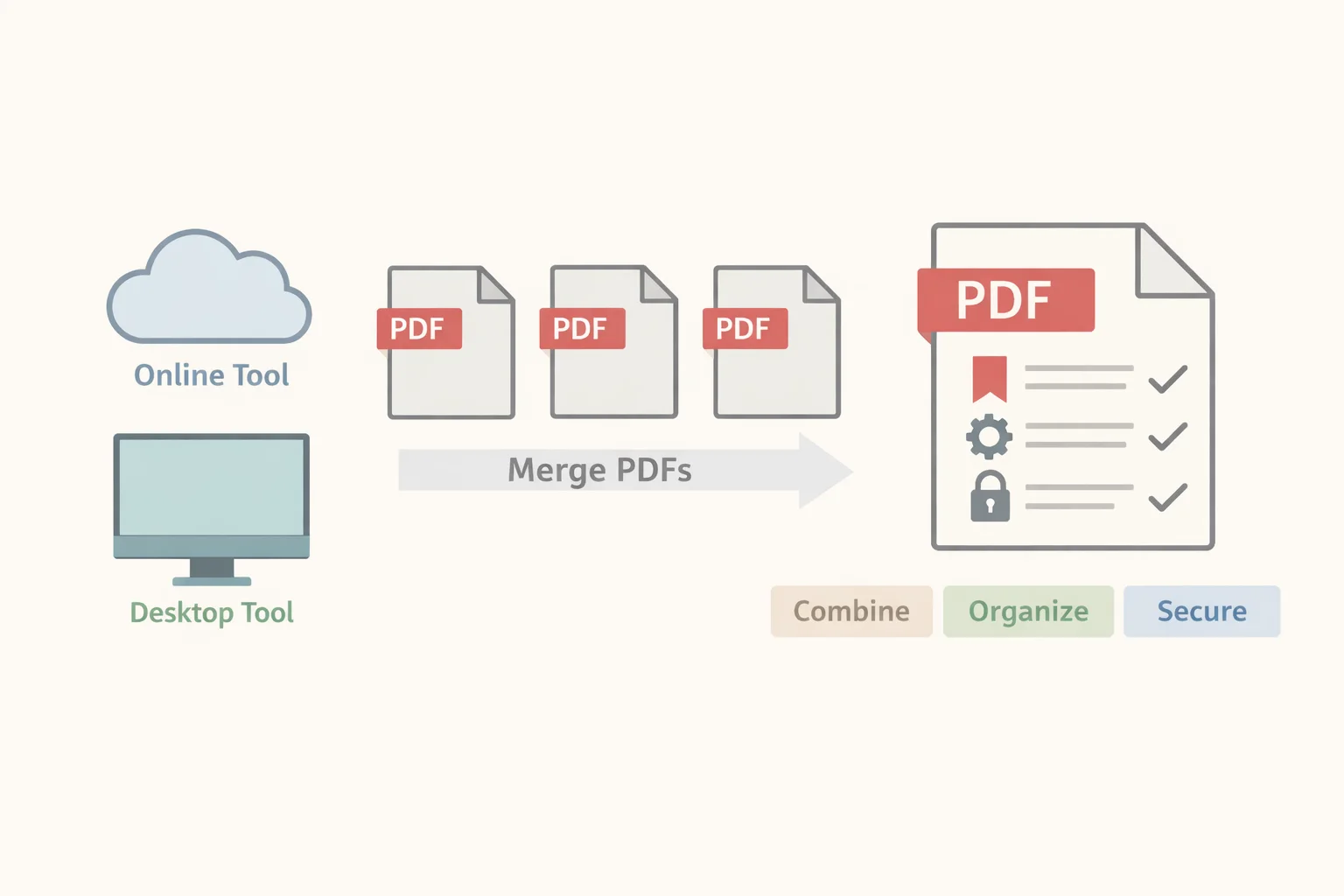
Merging PDFs looks simple until the file you send loses bookmarks, breaks form fields, exceeds email limits, or invalidates a digital signature. In 2025, choosing a reliable pdf combiner is less about “can it merge?” and more about how safely and predictably it merges across devices, workflows, and compliance needs.
This guide compares leading pdf merge tools (desktop, online, and freeware), shows practical ways to merge pdf files fast, and highlights security pitfalls—so you can pick the best pdf combine software for your use case without surprises.
Reasons to Merge PDF Files (And When It Matters Most)
A good pdf combiner is really a workflow accelerator. These are the moments it matters most:
- One-file submissions (RFPs, grants, applications): Many portals require a single upload. Merging reduces “missing attachment” risk and preserves reading order.
- Research and study packs: Combine papers, slides, and scanned chapters into one document; add OCR later for searchability.
- Project handovers: Deliver drawings, specs, and reports in one file so reviewers can annotate consistently.
- Training materials and e-books: Merge modules and worksheets, then add bookmarks for navigation.
- Contract bundles: Keep the main agreement, exhibits, and supporting documents together for audit traceability.
- Invoices and receipts: Merge monthly or quarterly documents to simplify bookkeeping and reduce version sprawl.
- Email sharing: A single attachment reduces confusion—especially when recipients forward the file internally.
- Compliance packaging: Merging can support controlled distribution (with consistent page labels, bookmarks, and a defined “final” version) when paired with sanitization and encryption.
Under the hood, modern PDFs follow standardized structure rules (e.g., the current core spec described via the PDF Association’s resource for ISO 32000 (PDF 2.0)), which is why high-quality tools can preserve outlines/bookmarks and metadata—while low-quality merges sometimes flatten or discard them.
Quick Start: How to Merge PDF Files (Online and Desktop)
Below is a practical “two-lane” quick start. The right lane (desktop) is usually best for sensitive documents or large batches; the left lane (online) is best for speed and convenience.
| Online pdf combining tool | Desktop pdf merge tool |
|---|---|
| 1) Open a trusted web-based merger (e.g., Smallpdf, Sejda). | 1) Open a desktop editor (Acrobat, Foxit, Nitro) or a local utility (PDFsam). |
| 2) Upload PDFs and wait for processing. | 2) Choose Combine / Merge and add files (drag-and-drop). |
| 3) Reorder files/pages; select options (rotate, compress, keep bookmarks). | 3) Arrange order and set output options (bookmarks/outlines, page size normalization). |
| 4) Merge → download. | 4) Merge/export → save locally. |
| 5) Verify page order, links, and file size before sharing. | 5) Review output for fonts, hyperlinks, form fields, and page numbering. |
Pro tip (email delivery): Gmail supports attachments up to 25 MB; above that, it switches to Google Drive sharing behavior. Google documents this in Gmail’s attachment guidance. If you’re repeatedly hitting that limit, merging plus compression (or splitting into parts) is often more reliable than sending many separate attachments.
PDF Combiner Comparison: Best PDF Combine Software vs Freeware vs Online
The table below focuses on decision-making factors that actually affect outcomes: privacy (on-device vs upload), limits, and whether the tool preserves structure.
| Tool | Platform | Pricing model | Privacy model | Merge quality & features | Best for |
|---|---|---|---|---|---|
| Adobe Acrobat | Windows/Mac | Subscription | On-device (desktop) | Strong reliability; preserves bookmarks/outlines; integrates OCR, redaction, signing | Legal/compliance, enterprise, heavy PDF workflows |
| Foxit PDF Editor | Windows/Mac | Subscription / perpetual options vary by region | On-device (desktop) | Feature-rich editor; solid combine workflows | Teams needing strong features at often lower cost than Acrobat |
| Nitro PDF Pro | Windows/Mac | Subscription (and some perpetual offerings historically) | On-device (desktop) | Business-focused; good productivity stack | SMBs standardizing PDF editing + merge |
| WPS PDF (part of WPS Office offerings) | Windows/Mac/Mobile/Web (varies by plan) | Freemium + paid | Mostly on-device for desktop apps | Convenient suite experience; merge plus everyday edits | Students/SMBs wanting an all-in-one productivity suite |
| PDFsam Basic | Windows/Mac/Linux | Free & open-source | On-device (no uploads) | Excellent for merge/split/extract; fewer “editor” extras | Privacy-first offline merges; budget-conscious users |
| Smallpdf | Web + apps | Freemium | Upload to cloud service | Very easy UI; limits depend on plan; check retention policy | Occasional quick merges on any device |
| Sejda PDF | Web + desktop | Freemium | Web upload or desktop local mode | Convenient; freemium limits; good for light tasks | Casual users; quick “do it now” merges |
| iLovePDF | Web + apps | Freemium | Upload to cloud service | Broad toolset beyond merging | Users who need many quick PDF utilities |
| macOS Preview | Mac | Free (built-in) | On-device | Simple drag-and-drop merging; limited advanced controls | Mac users who just need quick merges |
How to read this table:
- If you handle contracts, HR files, customer data, or regulated documents, prioritize on-device merging (Acrobat, Foxit, Nitro, PDFsam, Preview).
- If your need is occasional and non-sensitive, a pdf combining tool online can be faster—but verify retention and deletion policies first (for example, Smallpdf explains its processing and deletion approach in its Smallpdf security/help documentation).
Deep Dive: Strengths and Trade-Offs of Leading Tools
Adobe Acrobat
Pros
- Official, documented workflow for combining files (see Acrobat’s “Combine files” documentation).
- Strong at preserving structure like bookmarks/outlines and handling complex PDFs.
- Enterprise-grade features: OCR, redaction, preflight-style tasks (plan-dependent).
Cons
- Cost can be hard to justify for occasional users.
- Editing or recombining can impact signed documents (more on that below).
Best for: compliance-heavy teams, large document sets, and repeatable processes.
WPS Pro PDF Combiner (WPS PDF / WPS ecosystem)
Pros
- Cost-effective for users who also need a broader productivity suite.
- Smooth UX for everyday operations (merge, reorder, delete/rotate pages).
- Good fit for “I need to merge + lightly edit + export” workflows.
Cons
- Deep automation and advanced prepress-style controls may be less extensive than top enterprise stacks.
Best for: students, small businesses, and mixed office work where PDF merging is frequent but not highly specialized.
Foxit PDF Editor
Pros
- Lightweight feel with a strong feature set.
- Generally strong security and enterprise positioning (varies by edition and deployment choices).
- A good balance between capability and cost in many environments.
Cons
- Features can differ across product tiers/editions—confirm what your license includes before standardizing.
Best for: teams looking for a “middle path” between premium capability and predictable cost.
PDFsam Basic (Freeware)
Pros
- Free and open-source, designed for offline operations; the official merge page emphasizes its offline approach (PDFsam Basic merge).
- Excellent for core tasks: merge, split, extract, mix.
- No uploads required—ideal when privacy is non-negotiable.
Cons
- Not a full editor: OCR, redaction, advanced form work generally require other tools.
Best for: a pdf merge freeware option that’s reliable, local, and simple.
Smallpdf / Sejda / iLovePDF (Online)
Pros
- Fast to start: no install, works on shared machines or mobile.
- Great UX for quick merges, rearranging pages, and basic compression.
Cons
- File size/page limits are common in free tiers.
- Uploading documents introduces privacy and policy dependencies—always check the provider’s handling and retention statements (e.g., Smallpdf’s help/security overview).
Best for: casual users needing speed, especially when documents aren’t sensitive.
macOS Preview
Pros
- Built-in, no extra cost, no account needed.
- Apple provides a clear workflow for combining PDFs in Preview (Apple Support: Combine PDFs in Preview).
Cons
- Limited controls for advanced workflows (bookmarks management, OCR, form handling).
- Not designed for batch-heavy business processes.
Best for: Mac users who want a quick, dependable merge without extra software.
How to Choose a Trusted PDF Merging Tool
Use this simple scoring checklist (rate each 1–5). A “trusted pdf merging tool” is rarely defined by one feature—it’s the total risk profile.
Data security
- Can you merge entirely on-device?
- If cloud-based, do they disclose retention/deletion?
- Do they support encryption and secure transport?
Reliability & fidelity
- Preserves fonts, hyperlinks, page order, and bookmarks/outlines.
- Stable with large files (hundreds of pages, mixed sources).
Features that reduce rework
- Reorder pages, page ranges, rotate, normalize page size.
- Compression/optimization for email and web delivery.
- OCR for scanned documents (if needed).
Workflow fit
- Drag-and-drop; batch operations; templates/presets.
- Cross-platform support (Windows/Mac/Web) if your team is mixed.
Support & transparency
- Documentation quality and update cadence.
- Clear privacy policy and product lifecycle communication.
When security is a priority, look for tooling that can remove hidden content and metadata. For example, Acrobat documents its sanitization capability in “Sanitize PDFs in Acrobat Pro”, which is relevant if you’re merging documents from multiple authors or external parties.
Cost-Effective Options: Freeware, Freemium, and Short-Term Access
Choosing a cost-effective pdf combiner usually means matching your payment model to your frequency of use.
Freeware (offline):
If you only need merge/split, PDFsam Basic delivers strong results with zero subscription burden.Freemium online:
Tools like Smallpdf, Sejda, and iLovePDF are convenient for occasional tasks, but free tiers often include caps. Also, uploads shift the trust boundary to the provider—verify retention claims (e.g., Smallpdf Help) before using for confidential documents.Paid desktop (subscription/perpetual varies):
If you frequently merge, edit, OCR, redact, and standardize outputs, paid tools (Acrobat, Foxit, Nitro, WPS PDF offerings) reduce time and error rates—especially when handling complex PDFs.Short-term access model (3–30 days):
When you need premium features briefly (e.g., an OCR-heavy week, a one-time compliance package), short-term licensing can be more rational than a full-year subscription.
When Short-Term Activation Makes Sense
- One-off legal or grant submissions that must be perfectly packaged
- A semester thesis compilation (scans + OCR + bookmarks)
- Quarter-end reporting packs (repeat merges for multiple stakeholders)
- Seasonal tax document bundling and archiving
- Trialing the best pdf combine software before committing long-term
Example: WPS Pro via Short-Term Activation
If you prefer an “office suite” approach, WPS’s PDF tooling (see the official WPS PDF site) can cover typical merge needs:
- Merge multiple PDFs; reorder/rotate/delete pages
- Common edits and exports in one environment
- Optional compression to hit delivery constraints (like email attachment limits)
Exact features can vary by plan and platform, so confirm your edition before relying on it for OCR or advanced workflows.
Neutral Considerations for Any Short-Term Provider (e.g., ShortKey)
If you use a subscription-sharing or short-term activation platform, due diligence matters as much as the editor you choose:
- Verify activation period, renewal behavior, and regional compatibility
- Confirm support responsiveness during the activation window
- Read privacy terms (e.g., ShortKey Privacy Policy) before sharing personal or billing data
- Prefer on-device merging for sensitive content regardless of license source
- For more context on how short-term licensing is positioned, see ShortKey’s short-term software overview and its short-term activation codes guide
Security and Privacy When You Merge PDFs
Merging isn’t always “non-destructive.” The output is a new PDF, and that can introduce risk.
Do
- Prefer offline/on-device merging for confidential files (Acrobat desktop, Foxit, Nitro, PDFsam Basic, macOS Preview).
- If you use an online service, confirm retention/deletion policy and transport security (start with Smallpdf’s Help/Security overview).
- Sanitize the final document to remove hidden content, metadata, embedded attachments, and comments when needed (Acrobat documents this in Sanitize PDFs).
Don’t
- Assume a merged PDF is “clean.” Metadata from sources can persist.
- Merge signed PDFs casually. Combining, editing, or inserting pages can invalidate signatures depending on how the document was certified/signed. Adobe outlines limitations in its guidance on permissions and limitations of signed PDFs.
Encryption note: If you must store or transmit merged PDFs securely, use strong encryption supported by mainstream PDF tools. For the underlying cryptographic reference, the Advanced Encryption Standard is standardized in NIST’s FIPS 197 (AES), which is commonly referenced across secure document systems.
Step-by-Step: Merge PDFs in WPS Pro (Desktop)
Exact UI labels can vary slightly by version, but the workflow is typically consistent:
- Open WPS PDF from the official WPS suite (start at the WPS PDF home).
- Navigate to a tool such as Combine PDF / Merge PDF (often under Tools or PDF utilities).
- Click Add Files and select your PDFs (or drag-and-drop).
- Reorder the list to set the final reading sequence. If available, choose:
- Keep bookmarks/outlines (when offered)
- Normalize page orientation or size (useful for mixed sources)
- Compression/optimization if you’re aiming for email delivery
- Click Merge/Start, choose a save location, and export.
- Quality-check the output:
- Page order, page count, and any missing pages
- Hyperlinks (especially in reports with TOCs)
- Text rendering (fonts) and image clarity
- Final file size if it must fit email limits (see Gmail attachment behavior)
Troubleshooting Common Merge Issues
Problem: The merged file is too large to email
Fix: Compress images, downsample scans, or split into sections. If you’re emailing via Gmail, remember the 25 MB behavior described in Gmail Help.Problem: Mixed page sizes/orientation look messy
Fix: Normalize page size before merging or use “fit to page”/standardize options if your tool provides them. Rotate pages prior to merge for consistent reading.Problem: Text becomes garbled or spacing changes
Fix: Re-export sources with embedded fonts, or use standardized export settings in the source authoring tool. For archival-quality outputs, consider a PDF/A workflow (the long-term preservation family is standardized; see ISO 19005-4 (PDF/A-4)).Problem: Bookmarks (outlines) disappeared
Fix: Enable “retain bookmarks/outlines” (where available). Some tools flatten structure when combining from certain sources.Problem: You can’t merge because the PDF is protected
Fix: You need permission. If you own the document, remove restrictions legitimately in your editor or obtain an unlocked copy from the issuer.Problem: Scanned PDFs aren’t searchable after merging
Fix: Apply OCR before (or after) merging in a tool that supports it. If you’re using Acrobat, OCR is documented in Adobe help (start from Acrobat help hubs; for combining, see Combine files).Problem: A digital signature shows as invalid
Fix: Avoid editing or recombining signed files unless you understand the signing permissions. Adobe explains the constraint clearly in its article on signed PDF limitations.
Benefits of a PDF Combiner Tool Beyond Merging
A modern pdf combiner tool is often the “front door” to a full document workflow:
- Organization
- Reorder and extract pages for clean deliverables
- Build structured document sets (bookmarks/outlines)
- Performance
- Optimize for web/email distribution
- Reduce file size without destroying readability
- Accuracy
- OCR for scan-heavy packs (turn images into searchable text)
- Page labels and consistent pagination for citations and review
- Collaboration
- Comments/annotations for review cycles
- Redaction and sanitization for external sharing (see Acrobat sanitize guidance)
- Automation (in advanced tools)
- Batch operations and repeatable export settings for standardized outputs
Summary
A dependable pdf combiner helps you merge pdf files without breaking structure, exceeding delivery constraints, or introducing avoidable privacy risk. For sensitive or large documents, on-device tools like Acrobat, Foxit, Nitro, PDFsam, or macOS Preview are often the safest path. Online mergers can be convenient for quick, low-risk tasks—provided you validate retention policies and limits. If premium features are only needed occasionally, short-term access (including services like ShortKey) can reduce cost while still enabling professional-grade results when it matters.
Sources & Further Reading
- ISO 32000-2 (PDF 2.0) — PDF Association resource
- ISO 19005-4:2020 (PDF/A-4) — Long‑term preservation standard
- FIPS 197 (updated): Advanced Encryption Standard (AES) — NIST
- Adobe Acrobat: Combine files into one PDF (Desktop)
- Combine PDFs in Preview on Mac — Apple Support
- PDFsam Basic: Merge PDF — offline and open‑source
- Permissions and limitations of signed PDFs — Adobe Help
- Sanitize PDFs in Acrobat Pro — Adobe Help
- Send attachments with your Gmail message — Gmail Help
- Smallpdf Help: File deletion and security overview
- ShortKey service overview: short‑term software activation
- Guide to short‑term activation codes (ShortKey)
- ShortKey Privacy Policy