
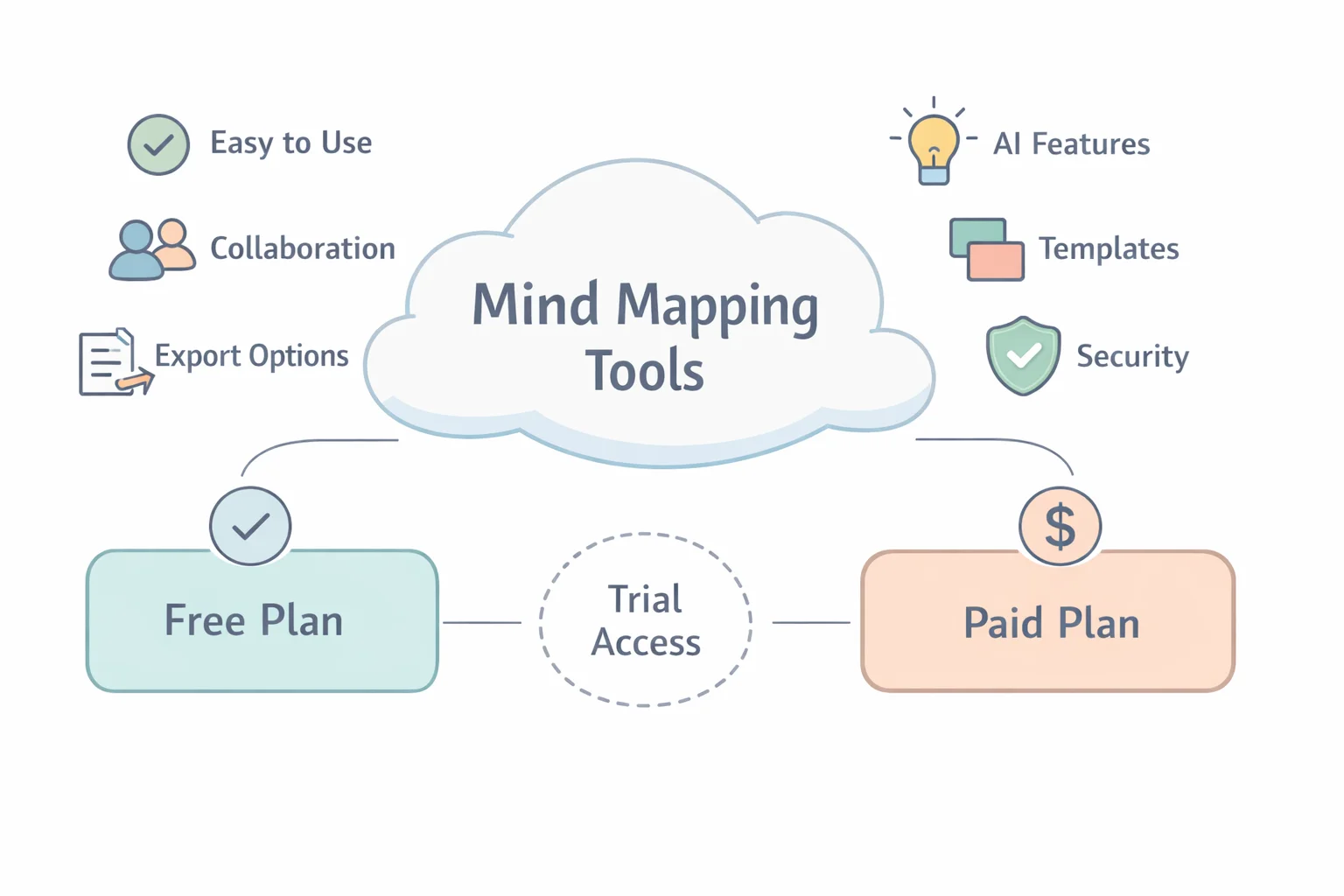
Online mind mapping has evolved from simple “bubble charts” into cloud-first visual workspaces with real-time co-editing, templates, exports, and (in some products) AI-assisted structuring. If you want an online mind mapping tool that feels fast, supports collaboration across time zones, and works across devices, the best choice depends less on “which tool is #1” and more on your workflow constraints: how many editors you need, what you must export, and whether your team requires enterprise controls like SSO and audit logs.
Below is a practical, side-by-side comparison of popular mind mapping software, plus a low-risk way to test premium features (without locking into long contracts) so you can pick the best fit with confidence.
What to look for in an online mind mapping tool (quick checklist)
Ease of use and learning curve
Look for fast node creation, intuitive keyboard shortcuts, and low-friction sharing. If adoption is your bottleneck, a “good enough” tool used daily beats a feature-rich tool nobody opens.Collaborative mind map online features (real-time co-editing, comments, version history)
Prioritize multi-cursor editing, comment threads/mentions, and version history if you’ll run workshops or co-author plans.Templates and starter frameworks (brainstorming, project planning, meeting notes)
Templates reduce “blank canvas fatigue,” especially for teams and classrooms.Export/import (PNG, PDF, Markdown, OPML, CSV, MS Office, Google Docs)
Exports matter when you need to turn mind maps into docs, slides, or tasks. If your output is a report or ticket backlog, test export fidelity early.Integrations (Google Drive, Microsoft 365, Slack, Jira, Notion)
If maps must live inside an existing SaaS stack, check native integrations and admin-manageable connectors. For example, many teams standardize on Google Workspace; reviewing Google Workspace security and compliance helps you understand what admins typically expect when a new tool touches corporate files.AI-assisted features (auto-layout, summarization, topic generation)
AI is useful when it reduces rework: auto-structuring messy notes, summarizing branches, or generating categories. Be cautious of “AI” that only adds novelty.Pricing model (free tier limits, paid plans, per-seat vs. per-user)
A free plan can be perfect for solo capture. Teams should model costs for editors vs viewers/guests.Cross-platform support (web, macOS, Windows, iOS, Android; offline mode)
If you run meetings on iPad but deliver on desktop, confirm consistent editing and export features across devices.Permissions and admin controls (SSO, SCIM, roles, domain capture)
Larger orgs often need SSO and automated provisioning. SCIM is a common standard for identity provisioning; see the protocol definition in IETF RFC 7644: SCIM and an applied example in Microsoft Learn: Use SCIM to provision users and groups.Security and compliance (encryption, GDPR, SOC 2, data residency)
If you handle client data or student records, evaluate GDPR alignment via the European Commission’s overview of EU data protection rules (GDPR) and verify whether vendors reference audits like AICPA SOC 2 examinations or standards like ISO/IEC 27001.
Quick comparison: top online mind mapping software for different needs
Note: pricing and feature availability can change by region and plan. Use the official product pages linked below to confirm current details before you buy.
| Tool | Best for | Collaboration | Ease of use | Templates | Export/Import | AI assist | Free plan | Paid from | Trial/Temporary |
|---|---|---|---|---|---|---|---|---|---|
| ProcessOn | Lightweight mind maps + diagrams (popular for quick docs) | Good for shared editing depending on plan | High | Good | Common image/PDF-style exports; verify formats by plan | Limited/varies | Yes (limits vary) | Varies | Official plans; some users prefer short-term access for sprints |
| MindMeister | Classic mind mapping with clean UI | Strong real-time collaboration | High | Solid | Typical map exports; check advanced export on paid tiers | Some (plan-dependent) | Yes (limited) | Varies | Official subscriptions/trials (region-dependent) |
| Miro | Remote workshops + visual collaboration suite | Excellent (facilitation features) | Medium | Excellent | Broad export options; strong ecosystem | Yes (AI features available on some plans) | Yes | Varies | Free tier + upgrades; good for workshop-based evaluation |
| Lucidchart | Diagramming + structured visuals for business | Strong (team documentation) | Medium | Strong | Robust diagram exports; integrations | Some (platform-dependent) | Yes (limited) | Varies | Trials common for teams |
| Coggle | Simple, fast mind maps for students/quick capture | Good for small groups | Very high | Light | Straightforward exports; check premium formats | Minimal | Yes | Varies | Easy to start; upgrade as needed |
| Whimsical | Mixed visual docs (mind maps + wireframes/flows) | Strong async collaboration | High | Strong | Useful exports; good for product teams | Some | Yes (limited) | Varies | Works well for short pilots |
Pricing and free-plan snapshot
Best free online mind mapping tool candidates (and typical constraints):
- Coggle: often favored for simplicity; free tiers typically limit private diagrams or advanced features.
- MindMeister: commonly limits the number of maps or advanced exports in free plans.
- Miro: free tiers are great for trying collaboration, but may cap boards or advanced features.
Paid features worth testing before committing:
- Advanced exports (e.g., higher-fidelity PDF/image, additional formats)
- Presentation modes / workshop tools (timers, voting, facilitation in tools like Miro)
- Admin controls (SSO, SCIM, audit logs), which are essential for regulated teams
Key differences that matter in practice
Simple mind maps vs. whiteboarding + diagrams vs. full visual workspace
If you only need clean mind maps, a focused tool can be faster than an all-in-one canvas. If you run workshops, whiteboard suites often win because they include facilitation primitives (timers, voting, templates).How permissioning and guest access affect team adoption
Some tools charge for editors, while others restrict guests or external collaborators. If you work with clients, test an “external guest” flow early.AI features that actually save time
Practical AI tends to be: summarizing long branches into meeting notes, suggesting categories/tags, or auto-structuring brainstorm lists. “AI” that only generates generic topics usually doesn’t survive real-world use.
Create a collaborative mind map online in 10 minutes
Choose a template and define a central topic
Start with one clear outcome: “Launch plan,” “Exam revision,” or “Product requirements.” Templates reduce setup time, especially in Whimsical or Miro.Add primary branches and label them with action-oriented nouns
Examples: “Risks,” “Timeline,” “Open questions,” “Resources,” “Decisions.” Action labels make it easier to convert the map into tasks later.Invite collaborators; set edit/comment permissions
For cross-company work, use view-only links for stakeholders and editor access for contributors. In enterprise settings, confirm whether SSO/SCIM are supported (SCIM background: RFC 7644).Use comments/mentions to gather input; add tags or priorities
Ask reviewers to comment rather than rewrite structure. Tag nodes likeP0,P1,Blocked, orNeeds reviewto keep momentum.Convert branches into tasks or export to your PM tool
If your workflow ends in Jira/Asana/Notion, test whether you can export cleanly or integrate directly (varies heavily by tool and plan).Save a version and share a view-only link
Version history is underrated: it prevents “collaboration chaos” after workshops.
Pro tips for faster structure
Keyboard shortcuts matter
In most mind map tools, rapid node creation (add sibling/child node, collapse/expand) is the difference between “flow state” and friction.Auto-layout vs. manual layout—when to use which
Auto-layout is best for early ideation. Switch to manual adjustments when you’re preparing a stakeholder-ready artifact.Color coding for themes and decision paths
Use one color for decisions, another for evidence/links, and a third for action items. This makes the map readable in exported PDFs.
Which tool fits your use case? (best-fit recommendations)
Mind mapping app for teams and remote workshops
- Consider: Miro or Lucidchart
- Why: Real-time collaboration, facilitation features, and broader visual documentation options.
- Pros: Great for cross-functional sessions (product + engineering + marketing).
- Cons: Costs can scale with seats; guest/editor rules vary by plan—test with a real workshop roster.
Mind map tool for students and teachers
- Consider: Coggle or MindMeister
- Why: Low learning curve, easy link-sharing, and a strong fit for assignments and group study.
- Evidence-based angle: Concept mapping is widely used in education to support learning and structured understanding; see teaching-focused guidance from Vanderbilt University CFT: Concept Maps and Carnegie Mellon Eberly Center: Concept Mapping.
Project management and cross-functional planning
- Consider: Miro or Lucidchart
- Why: Integrations, structured diagrams, and team collaboration features that map well to delivery workflows.
- What to verify: Security posture and admin controls; many orgs require formal security assurances like SOC 2 (definition: AICPA SOC 2 overview).
Lightweight brainstorming and quick idea capture
- Consider: ProcessOn or Coggle
- Why: Minimal friction for quick maps; faster for solo capture and quick sharing.
- What to test: Export quality and whether your preferred formats are paywalled.
Deep dive on collaboration: what makes or breaks team adoption
Real-time co-editing performance and cursor presence
In workshop settings, latency and conflict handling matter. Tools built for whiteboarding (e.g., Miro) often feel smoother with many simultaneous editors.Comment threads vs. sticky notes vs. thread linking to branches
For async collaboration, threaded comments reduce noise. For live workshops, sticky-note-style input can capture ideas faster, but you’ll need time afterward to structure.Version history, restore points, and change tracking
If your mind map becomes a living document, versioning prevents accidental deletions from turning into a productivity tax.Role-based permissions and safe sharing with externals
External collaboration is common (agencies, clients, vendors). A tool that can’t safely share view-only links or restrict editing will create process overhead.Cloud-based mind mapping for remote work: latency and mobile access
Many teams review maps on mobile but edit on desktop. Test whether mobile apps preserve formatting and whether offline access exists (plan-dependent).
Free vs. paid: how to evaluate without overspending
| Need | Free plan can work if… | Paid plan is worth it if… |
|---|---|---|
| Solo brainstorming | You only need a few maps/boards and basic sharing | You need advanced export formats, more storage, or privacy controls |
| Student group work | Small group size; assignments can be submitted as images/PDF | You need private class workspaces, richer exports, or admin-managed seats |
| Team workshops | You can run within board/map limits and basic facilitation | You need many editors, workshop templates, timers/voting, or multiple active boards |
| Documentation + stakeholder reporting | You only share view links and light exports | You must generate polished PDFs, diagrams, or integrate into a doc system |
| Enterprise rollout | You’re only piloting with a small internal group | You need SSO/SCIM, audit logs, data residency, and security reviews |
Practical approach: treat premium upgrades like any other SaaS procurement—define the one or two bottlenecks you’re paying to remove (export fidelity, editor limits, admin controls), then test those during a short pilot.
Try before you commit: trials, temporary licenses, and short-term access
Official free trials and free tiers: what to check
- Collaborator/editor limits (how many can edit at once)
- Export limitations (watermarks, restricted formats, resolution limits)
- File/board caps and whether old content becomes read-only
Short-term subscription for online productivity tools: when it’s useful
If you only need premium features for a workshop week, a sprint, or a short course, short-duration access can be more cost-effective than paying month after month.Temporary license for mind mapping tool (via short-term activation codes): what it means in practice
In some ecosystems, users obtain limited-duration activation codes (e.g., 3/7/15/30 days) to evaluate paid features without a long commitment. If you explore this route through a marketplace, confirm legitimacy and terms. For background on how short-term software access models are typically structured, see ShortKey service overview and this Guide to short-term activation codes. Before any purchase, verify refund conditions in the ShortKey Refund Policy and review data handling in the ShortKey Privacy Policy.
How short-term codes typically work
- Receive a code after purchase (delivery method depends on the provider)
- Redeem it in the product’s account/billing area (or the vendor’s redemption page if applicable)
- Access full features for the specified duration
- Let access lapse without auto-renewal if you don’t need ongoing premium features
When a temporary license makes sense
- You’re running a one-week sprint or a short workshop series
- You’re completing a semester project or time-boxed client deliverable
- You want to compare multiple tools side by side using the same dataset and workflow
Decision framework: choose the best online mind mapping tool for you
| Primary goal | Team size | Must-have features | Suggested tools | How to test |
|---|---|---|---|---|
| Solo learning and note-taking | 1 | Fast capture, clean export | Coggle, MindMeister | Build one chapter map and export to PDF/PNG; measure time-to-finish |
| Team brainstorming across functions | 3–20 | Real-time editing, facilitation, sharing | Miro, Whimsical | Run a 45-min workshop; check editor limits and post-workshop cleanup time |
| Product/engineering mapping with integrations | 5–50 | Integrations, structured diagrams, governance | Lucidchart, Miro | Test export fidelity + integration handoff; validate admin requirements |
| Classroom collaboration and assignments | 5–40 | Easy sharing, low learning curve, simple exports | Coggle, MindMeister | Assign a group map; check commenting, revision visibility, and submission format |
| Visual documentation + stakeholder presentations | 2–30 | Templates, presentation-ready views, permissions | Whimsical, Lucidchart | Produce a stakeholder pack (PDF + link); verify readability without an account |
Practical selection steps
- Shortlist 2–3 tools based on must-have features (collaboration, exports, integrations).
- Run a 48–72 hour pilot using the same template and scenario in each tool.
- Evaluate collaboration friction (invites, permissions, comments), export fidelity, and integration handoff.
- Choose free vs. paid vs. short-term access depending on whether your needs are ongoing or time-boxed.
Security, privacy, and admin considerations for teams
Data encryption, regional hosting, and compliance claims
Ask vendors how data is protected in transit and at rest, and whether you can select data residency. For baseline security expectations around cryptographic key management, you can reference NIST SP 800-57 Part 1 Rev. 5 (commonly used as a benchmark in enterprise security discussions).GDPR readiness and privacy posture
If you serve EU users or handle personal data, align review questions with GDPR requirements (official overview: European Commission GDPR resource). Confirm whether the vendor offers a DPA and clear sub-processor disclosures.SOC 2 / ISO 27001 signals for enterprise evaluation
SOC 2 is a widely recognized attestation framework (see AICPA SOC 2 Examination overview). ISO/IEC 27001 is a common information security management standard (see ISO/IEC 27001 overview). Certifications don’t replace your own risk review, but they speed up vendor assessments.Admin controls, SSO/SCIM, and audit logs
If your company needs automated onboarding/offboarding, ask about SCIM support (standard: RFC 7644) and validate how it works in real identity platforms (example: Microsoft Learn SCIM provisioning).Vendor trust signals
Look for transparent security documentation. For example, Miro’s Security and Compliance page shows the type of information mature SaaS vendors commonly publish (controls, compliance, and customer assurances).
FAQs about online mind mapping tools
What is the best free online mind mapping tool?
For many people, the “best” free option is the one that stays out of your way. Tools like Coggle and free tiers from larger suites like Miro can be strong starting points—just confirm limits on private boards, exports, and collaborators.Can I create mind maps online across Mac, Windows, iOS, and Android?
Most leading tools are web-based and work cross-platform; the key is whether mobile editing and exports match desktop capabilities. Test your exact workflow (capture on mobile, finalize on desktop) before standardizing.Are there collaborative mind mapping software options for teams with real-time editing?
Yes—tools like Miro and Lucidchart are commonly used for real-time collaboration, especially when workshops and cross-functional documentation are frequent.What are free trial mind map software alternatives if official trials are too short?
You can combine free tiers with a time-boxed pilot, or—where available—use short-term access methods to test premium exports, collaboration limits, and admin controls without committing long-term.Is there a way to get a temporary license for a mind mapping tool to test paid features?
Sometimes. Depending on the product ecosystem, temporary access may be available through official trials, monthly plans, or limited-duration activation codes via third parties. If considering third-party codes, verify terms, refunds, and privacy practices (for example: ShortKey Refund Policy and ShortKey Privacy Policy).Which tools are easiest for beginners to use?
Simplicity-first tools like Coggle and classic mind mapping experiences like MindMeister tend to have shorter learning curves than full visual collaboration suites.How do AI features help with brainstorming and structure?
The most useful AI features reduce manual cleanup: summarizing branches into readable notes, proposing categories for a messy brainstorm, or helping convert a map into a structured outline. Always validate outputs—especially when maps drive decisions.
Summary: a low-risk path to the right tool
- Define your must-haves: collaboration, templates, exports, and integrations (plus admin/security needs if you’re a team).
- Start with free tiers and official trials, then use short-term access when you need full premium features for a sprint, workshop, or course—without long commitments (see the ShortKey service overview for how this model typically works).
- Compare tools using the same real scenario, measure collaboration friction and export quality, then standardize on the online mind mapping software that fits your workflow—not just your feature wishlist.