
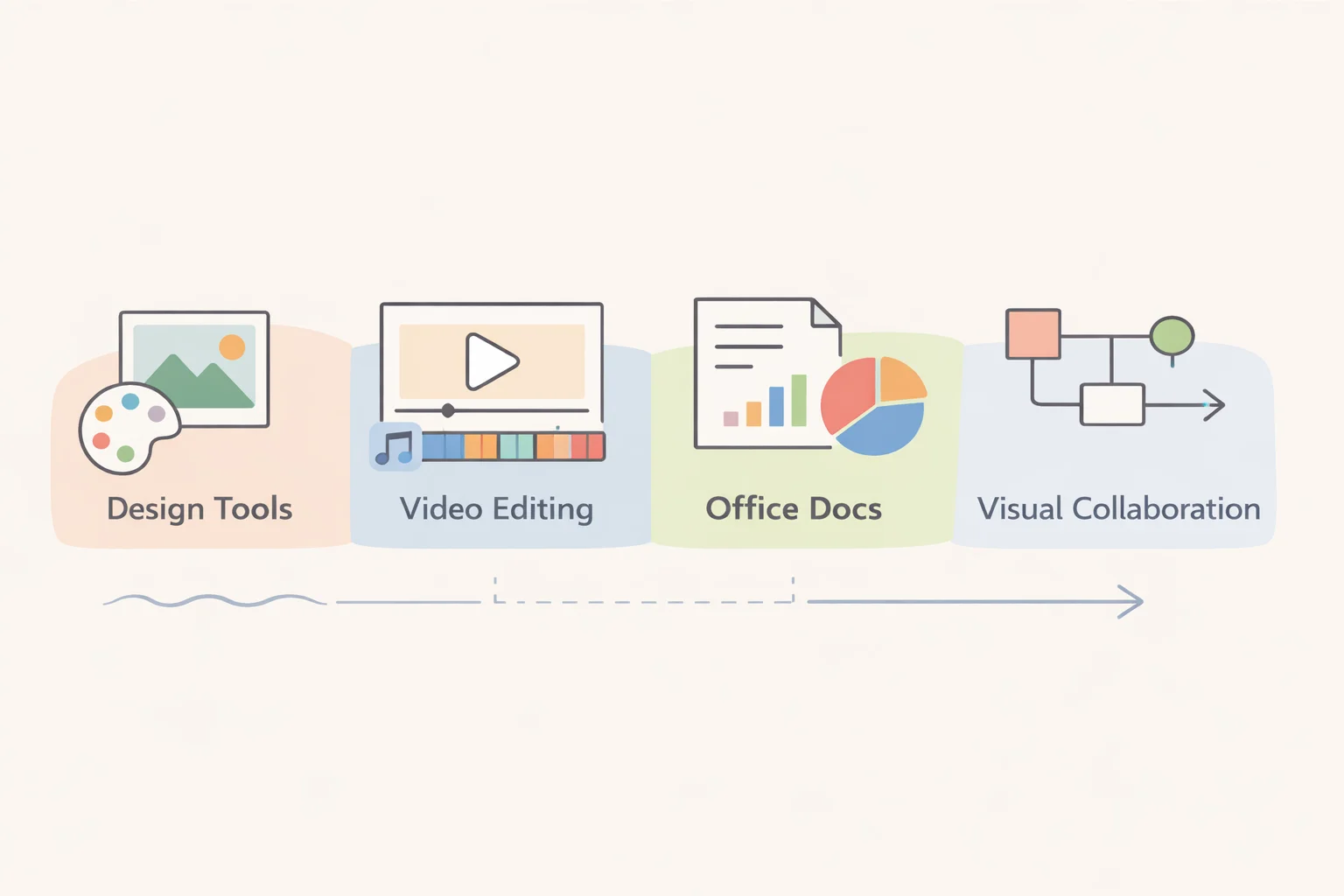
TL; DR: For occasional design, video editing, office documents, or visual collaboration tasks, lightweight and user‑friendly web or desktop tools like Canva, Clipchamp, Google Workspace, WPS Office, Miro, and ProcessOn offer a practical balance of capability and ease of use.
Introduction
Many people and small teams encounter occasional creative and productivity tasks—such as designing visuals for a social media post, editing a short video, or preparing a document or flowchart—that don’t justify the steep learning curve or cost of professional software. Yet completing these jobs well still requires tools that are accessible and capable. Choosing the right solution helps you finish work quickly, avoid unnecessary complexity, and produce results that look polished.
For one‑off or infrequent needs, the emphasis should be on tools that are easy to start with, affordable or free, and accessible across devices. This article breaks down recommended tools by category—design, video editing, office productivity, and visual workflow—offering concrete examples and ratings to help you decide efficiently.
Design Tools for One‑Off Creative Tasks
For occasional graphic and visual content tasks—such as creating posters, logos, social graphics, or simple layouts—design platforms with intuitive interfaces and rich template libraries are ideal. These tools help users achieve professional‑looking results without prior design experience.
Here are recommended design tools with key features and user review ratings:
| Tool | Platform | Key Features | Collaboration | Notes | User Rating (Source) |
|---|---|---|---|---|---|
| Canva | Web, iOS, Android, desktop | Drag‑and‑drop editor, templates, stock assets | Real‑time collaboration | Easy visual design | ⭐ 4.2/5 (marketingmonk.so) |
| Affinity Designer / Photo | Desktop | Vector & raster editing | Offline only | Professional standalone tools | — |
| Figma / Gravit Designer | Web, Desktop | UI/UX and vector design | Real‑time collaboration | Good for interface / vector tasks | — |
| Photopea | Web | Photoshop‑style editor | Cloud sharing | No install; PSD/AI/SVG support | — |
How to verify success:
- Export your design in the required format (PNG, PDF, SVG) and check compatibility on target devices.
- Ensure the layout and color profiles render accurately across screens or print.
Troubleshooting tip:
If a built‑in template is too limiting, start with the closest match, then customize elements. For complex edits, export the work and refine it in a desktop graphics editor.
Quick Video Editing Tools for Occasional Projects
For brief or simple video tasks—like cutting a clip, adding captions, or overlaying music—web‑based and lightweight editors reduce setup time and learning effort. Many provide templates and quick preview features to streamline work. Below are tools suitable for quick video edits along with user‑reported ratings:
| Tool | Platform | Features | Notes | User Rating (Source) |
|---|---|---|---|---|
| Clipchamp | Web, Windows | Timeline editing, templates | Good for basic edits | ⭐ 4.2/5 (g2.com) |
| VEED | Web | Auto‑subtitles, effects | Simple social video maker | — |
| CapCut | Mobile, Web | Filters, trim, subtitles | Popular for social clips | — |
| DaVinci Resolve | Desktop | Advanced editing & color grading | Professional‑grade free editor | — |
| OpenShot / Shotcut | Desktop | Free open‑source editors | Flexible general editors | — |
How to verify success:
- Export your video in the target resolution and aspect ratio.
- Confirm that captions, transitions, and audio sync correctly.
Troubleshooting tip:
If export fails or stalls, try reducing resolution or removing resource‑intensive effects. For intensive editing needs, consider a desktop editor like DaVinci Resolve.
Office Productivity Tools for One‑Off Documents
Occasional office tasks—such as drafting reports, building spreadsheets, or preparing presentations—benefit from productivity suites that offer broad format support and easy sharing. Cloud tools also support real-time collaboration when working with others.
Here are recommended office productivity tools with user ratings where available:
| Tool | Platform | Features | Notes | User Rating (Source) |
|---|---|---|---|---|
| Google Workspace | Web, mobile | Docs/Sheets/Slides, cloud collaboration | Excellent online sharing | — |
| WPS Office | Desktop, mobile | Writer/Spreadsheets/Presentation, PDF | Traditional office suite | ⭐ 4.4/5 (g2.com) |
| LibreOffice | Desktop | Free suite (Writer, Calc, Impress) | Full offline support | — |
| Zoho Office | Web | Docs/Sheets/Slides | Cloud alternative | — |
How to verify success:
- Export your document to PDF to ensure layout consistency.
- Verify that shared permissions are correctly set for collaborators.
Troubleshooting tip:
If formatting shifts when opening on another device, adjust styles to use universal fonts and export as PDF for sharing.
Workflow & Visual Collaboration Tools (Miro, ProcessOn)
For brainstorming, mapping workflows, and creating diagrams or flowcharts, visual collaboration tools provide digital canvases and templates that are more flexible than traditional office shapes. They are also useful for team planning and remote collaboration.
| Tool | Platform | Features | Collaboration | User Rating (Source) |
|---|---|---|---|---|
| Miro | Web, Desktop, mobile | Infinite whiteboard, templates | Real‑time editing | — |
| ProcessOn | Web | Flowcharts, mind maps, templates | Cloud collaboration | ⭐ 4.4/5 (g2.com) |
How to verify success:
- Export diagrams to PNG/SVG/PDF formats cleanly.
- Confirm that multiple collaborators can edit simultaneously without issues.
Troubleshooting tip:
If the interface lags, reduce visual complexity or switch to simplified views.
Choosing the Right Tool: Simple Decision Framework
When faced with a one-off task, a simple decision framework helps you pick the most suitable tool without overthinking:
- Identify the task category: design, video, office, or visual workflow.
- Estimate complexity: is basic output sufficient, or do you need finer control?
- Consider platform: web-based tools reduce install friction; desktop tools work offline.
- Check cost and licensing: prefer free or freemium options for one-off use.
| Task Type | Recommended Tool Type |
|---|---|
| Quick graphic design | Canva, Photopea |
| Short video edit | Clipchamp, VEED, CapCut |
| Productivity documents | Google Workspace, WPS Office, LibreOffice |
| Visual mapping or brainstorming | Miro, ProcessOn |
Verification Steps:
- Ensure the output meets size, format, and quality requirements.
- Test key features (e.g., export, share links) before completing the project.
Troubleshooting Tip:
Start with the simplest viable tool. If it proves insufficient, upgrade to a more advanced option in the same category.
Frequently Asked Questions
What’s the best tool for quick diagrams or flowcharts?
For structured diagrams and team brainstorming, ProcessOn and Miro provide extensive templates and collaborative editing. ProcessOn’s G2 rating reflects high user satisfaction. (g2.com)
Can WPS Office replace Google Workspace for occasional documents?
Yes. WPS Office functions well offline with familiar office tools, while Google Workspace excels at cloud collaboration and seamless real-time editing. (g2.com)
Which video editor is easiest for beginners?
Clipchamp and VEED are simple browser-based editors suitable for basic cuts, captions, and exports, with Clipchamp holding favorable user ratings on G2. (g2.com)
Are web-based design tools safe for confidential projects?
Web tools are generally secure, but for sensitive content prefer offline editors or ensure privacy terms are understood before uploading files.
Legality & Risks
Before uploading content to cloud tools, check the service’s privacy and data handling policies. Web-based services may store content on remote servers, and free tiers sometimes enforce export limits or watermarks. Use official download sources to avoid malware when installing desktop tools. For legal compliances like copyright or sensitive data handling, refer to the provider’s published terms.
Conclusion
For occasional tasks, balance ease of use with capability:
- Canva and Photopea speed up visual designs.
- Clipchamp, VEED, and CapCut streamline quick video edits.
- Google Workspace and WPS Office offer flexible document editing.
- Miro and ProcessOn support collaborative visual planning.
Choose tools based on task type, complexity, and whether collaboration or offline use is needed. Quick verification and simple troubleshooting ensure your project gets done effectively.
References (for user ratings & tools):
- Canva ratings aggregated from multiple review sources. (marketingmonk.so)
- Clipchamp user reviews and G2 rating. (g2.com)
- WPS Office verified G2 score. (g2.com)