
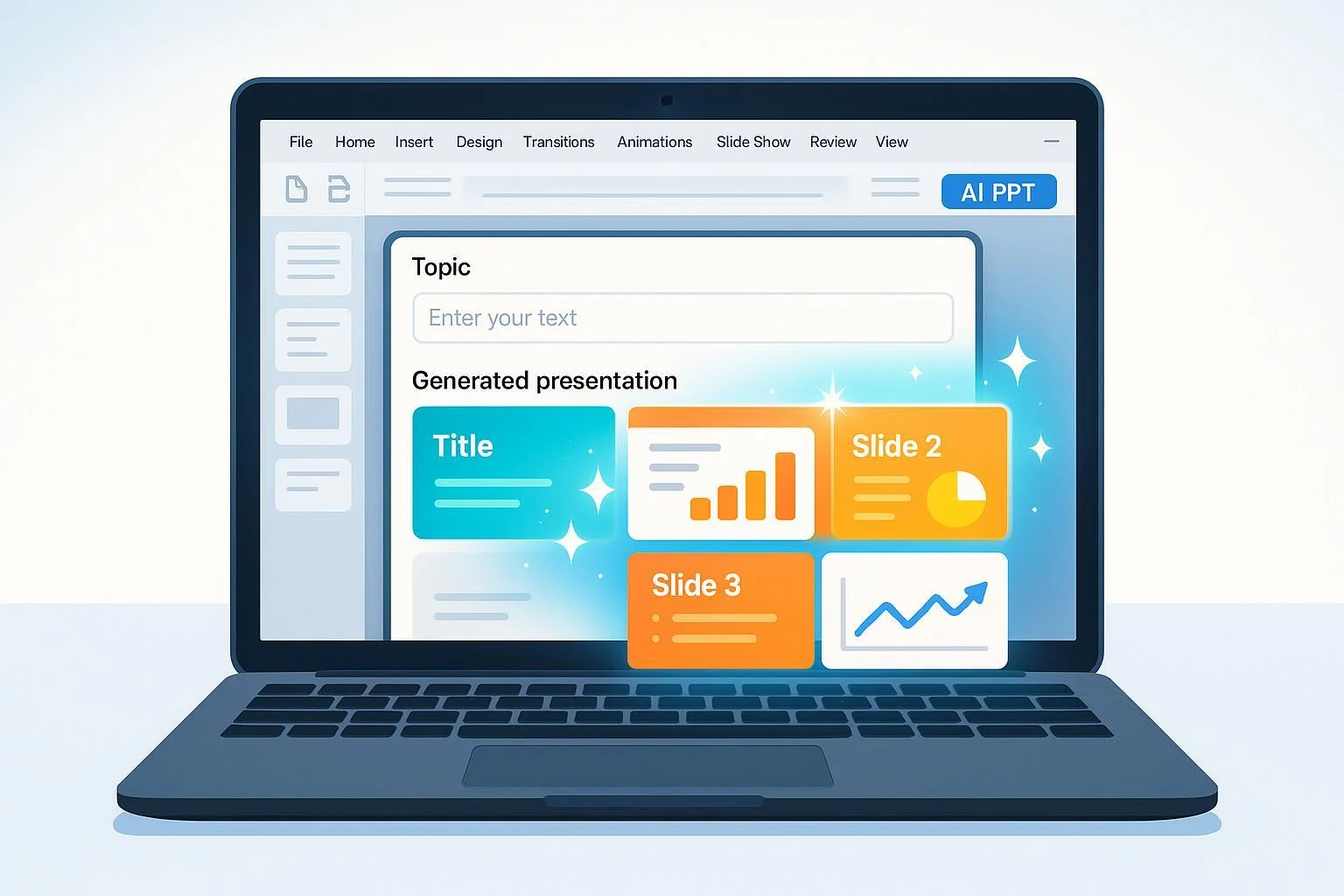
Creating a stunning presentation no longer requires hours of tedious work. With WPS AI PPT, you can generate an entire, professional slide deck from a simple prompt—in minutes. Whether you’re a student, freelancer, or business user, this guide will show you exactly how to access WPS Office, activate the AI presentation feature, generate, edit, and export your AI-powered slides. Plus, discover how to flexibly access WPS premium features—with official, secure, short-term licenses for ultimate convenience.
Why Choose WPS AI PPT?
Ever wished you could skip the blank-page anxiety and let AI create your presentation outline, design, and graphics? WPS AI PPT does exactly that:
- Instant slide generation: Just enter your topic or outline and let AI build engaging slides.
- Professional themes: Polished templates ensure your presentation looks sharp.
- Customizable output: Edit, reorganize, and personalize as you like.
- Massive time savings: Complete decks in 70% less time compared to manual methods.
What You’ll Achieve Following This Guide
- Seamless access to WPS Office (even if you only need it for a few days)
- Successful activation and use of WPS AI PPT
- Insider tips to get the best AI results
- Fast troubleshooting for common issues
Preparation: What You Need Before You Start
Before diving in, make sure you have everything ready for a smooth experience.
Checklist: Essentials for WPS AI PPT Success
- Device: PC, Mac, or mobile (iOS/Android) with at least 2GB RAM and a stable internet connection
- Latest WPS Office version: Download from WPS official site or the app store
- WPS Office account: Sign up (free) and prepare to activate premium/AI features
- Legit license or subscription:
- Buy monthly/yearly via WPS
- Or use official, short-term access (daily/weekly/monthly) through trusted providers like ShortKey, ideal if you just need premium features for a limited time (no shared accounts, instant start)
- Your topic or outline: Think about what you want to present, or gather key points/text
Pro-Tip: Short on budget or just need WPS premium/AI for a specific project? Platforms like ShortKey let you buy a genuine WPS Office license for as little as one day or one week, 100% official and secure. No risky shared logins, no long-term commitment!
Optional (But Helpful)
- Ready-made prompt templates: Browse WPS prompt examples
- Download our Handy Startup Checklist (PDF) (unofficial, based on this guide)
Step-by-Step: Using WPS AI PPT from Start to Finish
Follow these precise steps for guaranteed success:
Step 1: Install and Launch WPS Office
- Go to WPS Office Download and install on your device (Windows, Mac, iOS, Android).
- Open WPS Office. If prompted, log in or create a free WPS Office account.
Note: AI PPT tools are only visible and usable when logged in and using an active official license or valid subscription (including short-term key).
Step 2: Activate Premium/AI Features
- From WPS Office home, click your Account/Profile icon.
- Enter your activation code or confirm your paid/short-term license is recognized (your status should say Premium or AI Available).
- If using a short-term key (e.g., via ShortKey), paste it into the activation field and refresh.
Common Mistake Alert: If the AI tab/button is missing or grayed out, check your license status. Unsigned or expired/free accounts won’t see premium features.
Step 3: Start a New AI-Powered Presentation
- On the main screen, click Slides or Presentation > Blank.
- Locate and click Create with AI (or look for the WPS AI tab/button).
Step 4: Craft Your AI Prompt and Select Settings
- In the AI dialog, enter your topic, rough outline, or simply paste your key points.
- Choose template/style, slide count (Short/Medium/Long), and language.
- Optionally, select a prompt template or let AI suggest structure.
Pro-Tip: The clearer and more specific your input, the better the AI’s output! For example:
- "The Impact of Renewable Energy on Modern Cities" (Topic only)
- "Outline: 1. Introduction; 2. Benefits; 3. Challenges; 4. Future Trends; 5. Case Studies" (Detailed prompt)
Step 5: Generate and Review Your Slides
- Click Generate and watch as WPS AI creates your entire deck—usually under two minutes.
- Preview slides (cover, outline, content, closing) in the interface.
- Make quick edits: drag to reorder, click to change text, or swap images.
Success Indicator: You should see a complete, logically ordered deck reflecting your theme and input. Need a different layout? Click Change Theme or Smart Graphics for instant design tweaks.
Step 6: Edit for Personalization (Optional but Recommended)
- Update images: Use WPS’s AI image tools for background removal or smart enhancements.
- Adjust slide order, add personal data, tweak colors/fonts to fit your style or brand.
- Use batch-edit: One-click apply any design or smart chart to all slides instantly.
Expert Tip: Spend 5-10 minutes on light edits—you’ll get a presentation far better tailored than any generic AI output!
Step 7: Export and Share Your AI-Generated Presentation
- Click Export > choose PPTX (compatible with PowerPoint), PDF, or Share for cloud delivery.
- For mobile: Tap Share/Export from the menu.
Note: Export is always available with a valid activated license, including short-term ones. If export is grayed out, double-check your activation status.
Troubleshooting & FAQs: Get Unstuck, Fast
Common WPS AI PPT Issues and Solutions
| Problem | Solution |
|---|---|
| AI tab/button missing | 1. Update WPS Office 2. Log in and check license 3. If using short-term access, ensure code is still active 4. Restart app/refresh account |
| Activation failed | 1. Verify you entered the correct code 2. Confirm code not expired (short-term passes are date-limited) 3. Try signing out/in 4. Contact official or provider support |
| AI slides incomplete or off-topic | 1. Rewrite prompt: be clear/specific 2. Use outline form 3. Try prompt templates 4. Use fewer slides as test |
| Export not available | 1. Check license status 2. Re-activate subscription or short-term key 3. Try exporting on desktop instead of mobile if issue persists |
| Formatting/artifacts | 1. Update WPS 2. Edit final output manually 3. Use WPS’s image/design repair tools |
FAQ
Q: Can I use WPS AI PPT on mobile?
A: Yes! All steps above work in the WPS mobile app (iOS/Android), though editing options are broader on desktop.
Q: What’s the fastest way to get official WPS access without a long contract?
A: Use legit short-term licenses via solutions like ShortKey to buy daily/weekly/monthly official keys—start instantly, save money, and avoid gray-market risks.
Q: How much faster is AI PPT than manual slide creation?
A: Basic presentations can be automated in 1-2 minutes per deck, with edits/export in 10-15 minutes—a huge time savings (up to 70%) versus building from scratch.
Q: Do I need design skills?
A: No! WPS AI PPT does the heavy design lifting. Just focus on your message and edit details as needed.
Q: What if my subscription ends?
A: You’ll retain local files, but AI generation and premium editing will require a new/renewed license. Short-term plans are perfect for one-off or periodic needs.
Bonus: Quick-Start Resource Toolkit
- WPS Office Official Download
- Short-Term WPS Office Licenses (ShortKey)
- Official AI PPT Guide & Prompt Examples
- Community-Curated Prompt Library (Unofficial)
- Printable Preparation Checklist (PDF)
Wrapping Up: Your AI-Powered Slides, Delivered
By following these steps, anyone—regardless of experience or budget—can produce beautiful, professional presentations with WPS AI PPT. You learned not only how to access and activate the feature (even flexibly for short-term projects via trusted providers like ShortKey), but also how to work around the main pitfalls competitors ignore.
Ready to impress your audience with AI-generated slides? Fire up WPS Office and try it now—your next great presentation could be just minutes away!
Need flexible WPS Office access for your next deck? Get started with instant, official daily or weekly plans here.
For further inspiration and editable templates, explore the WPS AI Academy.