
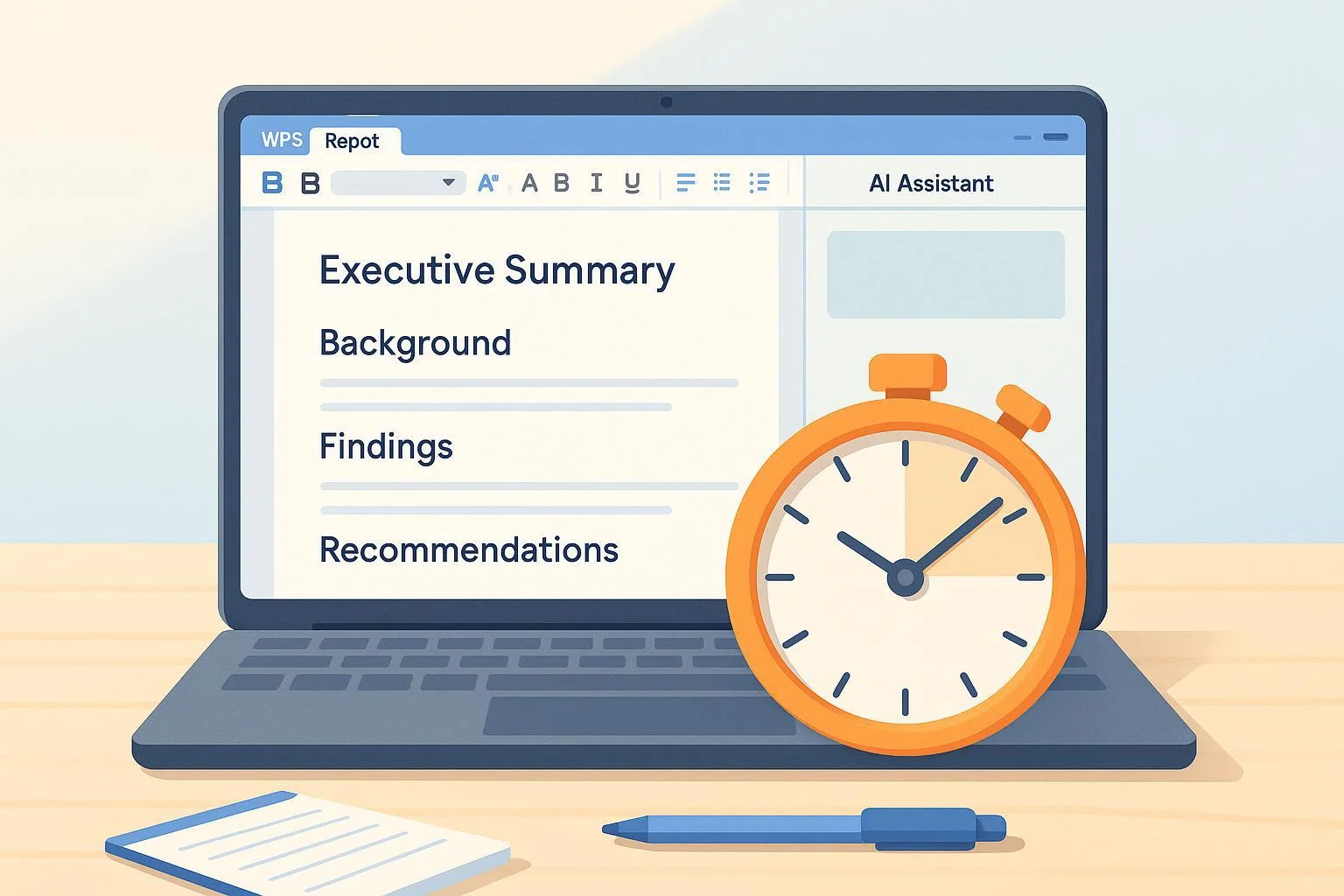
If you’ve got 30 minutes and a topic, you can produce a credible first draft—with a clean outline, polished sections, and export-ready formatting—using WPS AI inside WPS Writer. This guide gives you a proven, time-boxed workflow plus copyable prompts and troubleshooting so you stay on track.
- Difficulty: Easy to moderate (beginner-friendly with clear prompts)
- What you need: WPS Office (desktop) with access to WPS AI, an internet connection, and brief notes/sources
- Output: A ~1,000–1,500 word report draft with headings, an optional table of contents, and DOCX/PDF export
- Privacy note: Don’t paste confidential data unless you’ve reviewed WPS’s current policy on AI data handling. See the latest details in the WPS Privacy Policy under AI services data types in the 2024 policy page, cited as the privacy policy (https://www.wps.com/privacy-policy/).
According to the WPS AI Writer feature overview, WPS AI can create, paraphrase, summarize, and improve text, which fits report drafting and polishing workflows described here, as explained on the WPS AI Writer feature page (https://www.wps.com/feature/ai-writer/). You can activate WPS AI in Writer via the AI button or by typing “@AI” in a document, as described by the WPS Academy’s overview of WPS AI features (https://www.wps.com/academy/a-comprehensive-overview-of-wps-ais-latest-features/wps-ai/1881865/). For language improvement and editing, WPS documents enhancements describe Smart Create and Smart Edit for generating and refining content in WPS Docs/Writer, as detailed on the WPS Academy enhancements page (https://www.wps.com/academy/new-enhancements-to-smart-create-and-edit-in-wps-docs/wps-ai/1882037/).
Quick Start: Set Up WPS AI in Writer (2 minutes)
- Open WPS Writer (desktop) and a new blank document.
- Activate WPS AI:
- Click the WPS AI button in the top area, or
- Type @AI in the document and press Enter to open the AI panel, as described in the WPS Academy feature overview (https://www.wps.com/academy/a-comprehensive-overview-of-wps-ais-latest-features/wps-ai/1881865/).
- Paste your topic notes or bullets into the document (or keep them handy).
- Tell WPS AI your audience, tone, and target length before you generate anything.
Pro tip: Keep generations short (150–250 words). It’s faster to iterate sections than to wrangle one huge draft.
Checkpoint: You can open/close the AI panel and insert generated text into the document successfully.
The 30-Minute Workflow (minute-by-minute)
Minutes 0–5: Setup and context
Action
- Add a one-line brief at the top: topic, audience, purpose, and target length.
- In the AI panel, set your constraints and paste any key facts.
Prompt (copy/paste)
You are assisting with a professional report. Topic: <your topic>. Audience: <executive/technical/academic>. Target length: ~1,200 words. Tone: formal, clear, active voice. Use only the information I provide unless I say otherwise. If something is unknown, say “insufficient data.”Pitfall to avoid
- Vague inputs create generic outputs. Anchor the AI with specific constraints (audience, length, structure, facts).
Checkpoint
- You’ve confirmed the AI understands your task and constraints.
Minutes 5–10: Generate and approve the outline
Action
- Ask WPS AI for a report outline with standard sections. Edit the outline for fit, then confirm.
Prompt (copy/paste)
Create a concise professional report outline on <topic> for <audience>, target length ~1,200 words. Include: Executive Summary, Background, Method, Findings (3–5 bullets), Recommendations (prioritized), Risks, and Next Steps. Keep section titles brief.Why this works
- WPS AI supports structured drafting and content creation suitable for reports, as explained on the WPS AI Writer feature page (https://www.wps.com/feature/ai-writer/).
Checkpoint
- The outline has all required sections and matches your purpose. Make any edits directly in the document.
Minutes 10–20: Draft sections in tight loops (150–250 words each)
Action
- Draft sections one at a time. Paste your notes for that section and constrain the word count. Add citation placeholders like [Ref1], [Ref2] to remind yourself to verify sources later.
- Use summarization to compress excerpts from sources before drafting, as covered in WPS AI’s summarize capability on the WPS AI Writer feature page (https://www.wps.com/feature/ai-writer/).
Section drafting prompt
Using these notes, draft the <section name> (max 200 words), formal tone. Include placeholders like [Ref1] [Ref2] where facts come from my notes. Avoid speculation. Notes:
- <paste bullets or excerpts>
Summarization prompt (for source excerpts)
Summarize the following excerpts in 5 bullets with exact numbers and dates; preserve source terminology. Output <= 120 words:
<paste excerpt>
Pitfalls to avoid
- Hallucinations: Remind AI to use only your notes. Add “If unknown, say ‘insufficient data.’”
- Overlong text: Cap output at 200 words per section. Generate more only as needed.
Checkpoint
- Each section draft traces specific claims to your notes with placeholders you can verify.
Minutes 20–25: Polish for clarity, tone, and readability
Action
- Use rewrite/improve tools to tighten language, reduce passive voice, and keep terminology intact. WPS provides Smart Edit/Improve Writing functions for clarity and polish, described on the WPS Academy updates page (https://www.wps.com/academy/new-enhancements-to-smart-create-and-edit-in-wps-docs/wps-ai/1882037/).
Polishing prompt
Rewrite this paragraph to be concise, active voice, grade 10–12 readability. Preserve technical terms and numbers; avoid changing meaning:
<paste paragraph>
Style consistency prompt
Standardize headings and numbering in this section. Reduce unnecessary passive voice. Keep lists scannable.Checkpoint
- Paragraphs read crisply, and tone is consistent across sections.
Minutes 25–28: Fact and consistency checks
Action
- Confirm every date, name, and number against your sources. Replace [Ref1], [Ref2] with real citations or links you verified manually.
- If WPS AI suggested references, treat them as placeholders unless you can verify them.
Why this matters
- AI systems can generate inaccurate or unverified references. Add citations manually and verify sources. The WPS AI blog explains AI assistance for proofreading and writing but does not guarantee authoritative citation generation as per the WPS AI “What is WPS AI” article from 2024 (https://www.wps.ai/blog/ai-what-is-wps-ai/).
Checkpoint
- All facts are traceable to a real source you checked. No unverified references remain.
Minutes 28–30: Format and export
Action
- Apply built-in heading styles: Home > choose Heading 1/2/3. See the WPS Academy quick tutorial on using heading styles (https://www.wps.com/academy/how-to-use-the-heading-style-in-wps-writer-quick-tutorials-1861565/).
- Insert or update a Table of Contents: References > Table of Contents; then References > Update TOC to refresh page numbers, as detailed in the WPS Academy guide (https://www.wps.com/academy/how-to-update-the-table-of-contents-quick-tutorials-1861647/).
- Export: File > Save As > DOCX for editing; Tools > Export to PDF for share-ready output, as described in the WPS Academy export guide (https://www.wps.com/academy/how-to-convert-wps-to-pdf-a-full-guide-quick-tutorials-1877694/).
Checkpoint
- Headings are applied correctly, TOC reflects current structure, and your DOCX/PDF opens cleanly.
Copyable Prompt Library (use as-is or tweak)
Outline
Create a concise professional report outline on <topic> for <audience>, target length ~1,200 words. Include: Executive Summary, Background, Method, Findings (3–5 bullets), Recommendations (prioritized), Risks, and Next Steps.Section draft
Using these notes, draft the <section name> (max 200 words), formal tone. Insert placeholders like [Ref1] [Ref2] where the facts come from my notes. Avoid speculation. Notes:
- <paste bullets>
Polishing
Rewrite this paragraph to be concise and in active voice (grade 10–12). Preserve technical terms and any numbers. Do not add claims:
<paste paragraph>
Summarization
Summarize this source in 5 bullets with exact numbers and dates. Limit to 120 words:
<paste excerpt>
Style and consistency
Standardize headings to Heading 1/2/3, fix numbering, and reduce passive voice in this section.
Templates for Common Report Types
Executive status update (weekly)
- Sections: Executive Summary, Progress vs. Plan, Risks/Blockers, Next Week’s Priorities, Decisions Needed.
- Tip: Keep Executive Summary to 120–150 words; link key metrics.
Research briefing
- Sections: Background, Key Findings (3–5 bullets), Implications, Recommendations, References.
- Tip: Use the summarization prompt on abstracts/excerpts to capture exact figures before drafting.
Project proposal
- Sections: Overview, Objectives and Scope, Approach/Timeline, Budget Assumptions, Risks/Mitigations, Success Metrics, Next Steps.
- Tip: Draft “Approach/Timeline” in a numbered list and let AI tighten language afterward.
Troubleshooting (quick fixes that actually work)
WPS AI panel won’t open or is missing
- Update WPS Office to the latest version and sign in to your account; availability can vary by region. If the UI misbehaves, try resetting settings as shown in the WPS guide to resetting WPS Office settings (https://www.wps.com/blog/how-to-reset-wps-office-settings/).
Output is generic or off-topic
- Add constraints (audience, structure, word limit). Paste your notes before asking for a draft. Tell the AI: “Use only the provided notes; if unknown, say ‘insufficient data.’”
The rewrite changed meaning or over-smoothed technical terms
- Rewrite smaller chunks (2–4 sentences). Specify “preserve key terms and numbers.” Compare before/after.
Headings/TOC broken after edits
- Re-apply Heading 1/2/3 styles and then References > Update TOC, as explained by the WPS Academy TOC update tutorial (https://www.wps.com/academy/how-to-update-the-table-of-contents-quick-tutorials-1861647/).
Export looks different than on screen
- Confirm page setup and margins. Use Tools > Export to PDF for fixed-layout sharing, per the WPS export tutorial (https://www.wps.com/academy/how-to-convert-wps-to-pdf-a-full-guide-quick-tutorials-1877694/).
Verification Checklist (2 minutes before you export)
Content
- Executive Summary states the purpose and top-line result in ≤150 words.
- Each section stays within its focus and uses precise language.
Facts and references
- Every number, date, and proper noun is cross-checked against a real source.
- All [Ref#] placeholders are replaced with verified citations or removed.
Formatting and delivery
- Heading styles applied consistently; TOC inserted and updated.
- Final export tested in both DOCX and PDF.
Optional value-adds (after your 30-minute draft)
- Turn your report into a slide outline and then a deck using WPS’s presentation tools; keep bullets tight before you expand to slides.
- If you’re starting from a long PDF or document, summarize excerpts first using the summarization prompt to capture numbers and dates precisely.
Why this workflow works
- It leverages WPS AI’s strengths in drafting, summarizing, paraphrasing, and improving language while keeping you in control of structure and facts, as outlined on the WPS AI Writer feature page (https://www.wps.com/feature/ai-writer/).
- Smart Create/Edit provides guided generation and refinement passes that match the “short, iterative section” approach recommended here; see the WPS Academy update on Smart Create and Edit capabilities (https://www.wps.com/academy/new-enhancements-to-smart-create-and-edit-in-wps-docs/wps-ai/1882037/).
- For context on productivity benefits from WPS’s AI platform, the AWS case study in 2024 reported efficiency improvements in R&D workflows using WPS AI on Amazon Bedrock, highlighting 30% R&D efficiency gains and 35% cost reduction, as stated in the AWS case study for WPS (https://aws.amazon.com/solutions/case-studies/wps/). Use this as directional context—your real gains depend on your inputs and review rigor.
Important notes and guardrails
- Citation integrity: Treat AI-suggested references as placeholders until verified. Add real citations manually.
- Privacy: Review WPS’s current AI-related data handling and avoid sharing sensitive information. See the WPS Privacy Policy AI data categories (https://www.wps.com/privacy-policy/).
- Platform focus: This guide centers on desktop WPS Writer. Web/mobile features may vary, and exact button labels can change over time.