
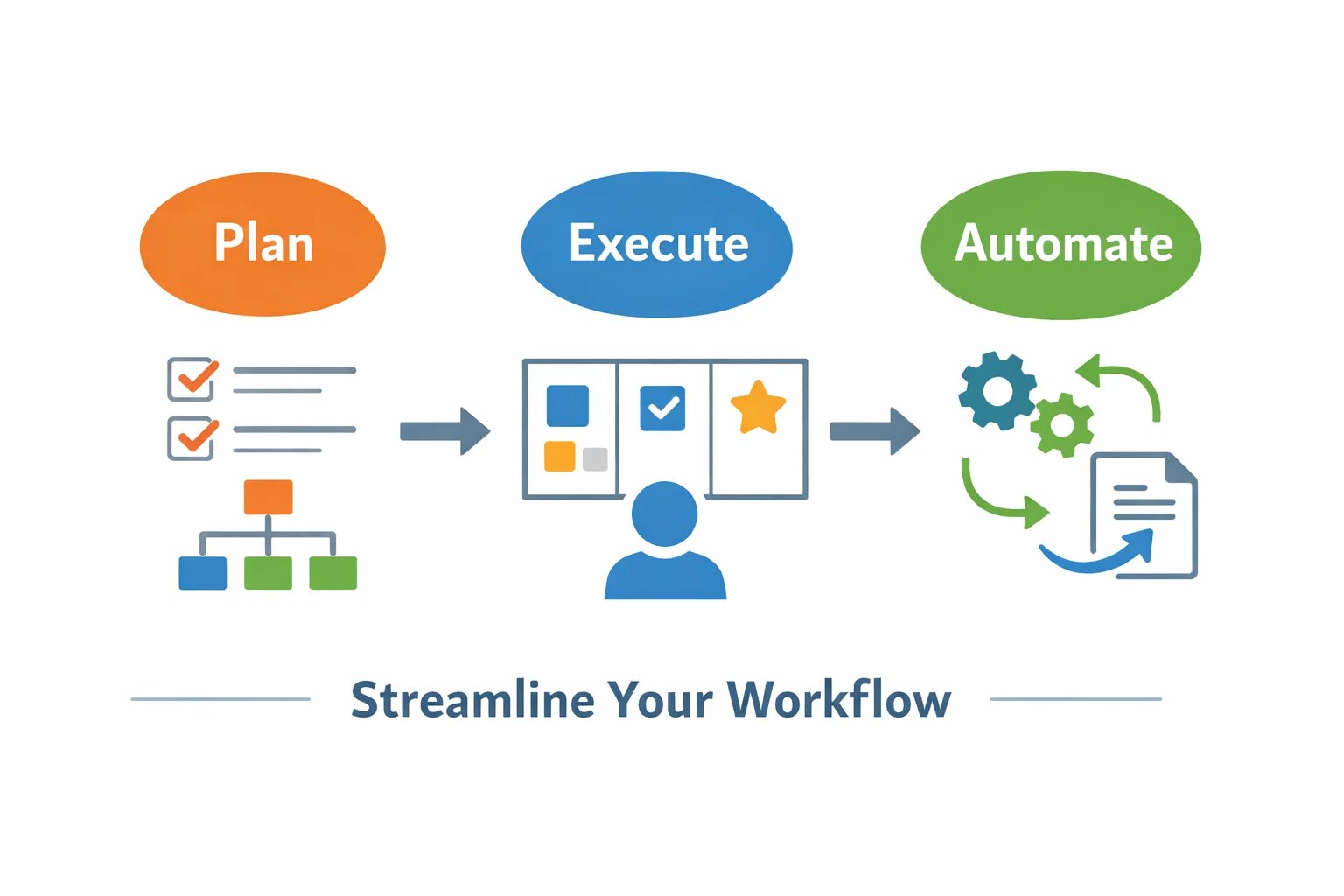
Creating a workflow isn’t about adding more “process.” It’s about making work predictable: who does what, in what order, with what standards—and how you’ll spot problems early. Whether you’re building a marketing content pipeline, a lightweight approval flow, or an automated SaaS-to-SaaS handoff, a good workflow reduces rework, clarifies ownership, and improves delivery speed without sacrificing quality.
This guide walks you through practical workflow creation steps, tool selection criteria (including security and data residency), and copy-ready examples you can adapt for your team or personal productivity.
Workflow vs. Process Flow: What It Is and Why It Matters
Definitions (plain-English)
- Workflow: A repeatable sequence of tasks, roles, and rules that moves a unit of work from “request” to “done.” Think: a blog post from idea → draft → review → publish.
- Process flow: A broader, often higher-level view of how value moves through a system. A process flow may include multiple workflows, systems, and decision points across teams.
If you need formal notation for modeling (especially in operations, IT, or compliance-heavy teams), the BPMN standard is the common reference point; see the official OMG BPMN Specification for terminology and modeling rules.
Quick comparison: workflow vs. process flow
- Scope: Workflow = specific work item; process flow = end-to-end system.
- Purpose: Workflow = execution and accountability; process flow = optimization and governance.
- Artifacts: Workflow = statuses, checklists, approvals; process flow = diagrams, swimlanes, cross-team dependencies.
Why workflows matter (measurable outcomes)
Well-defined workflows typically improve:
- Visibility: Work-in-progress becomes trackable (who owns it, what’s blocked).
- Cycle time: Teams can measure and reduce time from start to finish using a consistent “definition of done.”
- Quality: Clear gates (reviews/approvals) reduce errors and rework.
- Automation readiness: Once steps and rules are explicit, tools like Zapier or Microsoft Power Automate can automate notifications, routing, and data sync.
Where workflows help most
- Team collaboration: marketing, product, operations, sales ops, support.
- Personal productivity: writing, research, document management, recurring admin tasks.
(You’ll naturally encounter terms like how to create a workflow, workflow vs process flow, and build efficient workflow when searching—this guide aims to make those concepts actionable.)
Choosing the Right Workflow Tools (2026): Comparison and Selection Criteria
The “best” workflow tool depends on workflow complexity, collaboration needs, and how much automation and governance you require—especially for SaaS teams handling customer data.
Selection criteria to guide your choice
Use this checklist to compare tools objectively:
- Complexity fit: simple tasks vs multi-step approvals and dependencies
- Collaboration: comments, mentions, real-time editing, version history
- Automation: rules, triggers, approvals, AI assistance
- Integrations: email, chat, drive, CRM, BI, webhooks/API
- Security & compliance: access controls, audit logs, retention, SSO
- For structured control families and audit-friendly design, see NIST SP 800-53 Rev. 5.
- For broader information security management expectations used internationally, see ISO/IEC 27001 Information Security Management.
- Data residency: where data is stored and what options exist
- Budget & licensing flexibility: free vs paid, monthly vs annual, short-term needs
Tool categories and when to use them
Below are common categories, with official sites for reference:
- Diagramming and workflow design
- ProcessOn — useful for mapping workflows, swimlanes, and documentation before implementation.
- Task and project management (execution layer)
- Document suites and co-authoring
- WPS Office — document creation and templates.
- Google Workspace — collaboration across Docs/Sheets/Drive.
- Microsoft 365 — Office apps plus enterprise admin controls.
- Automation and integration (no-code / low-code)
- Zapier — fast prototyping across many SaaS apps.
- Make — visual scenario builder for automations.
- Microsoft Power Automate — enterprise automation with governance features.
Comparison: free vs paid, and short-term access
| Access option | What you typically get | Typical limitations | Best for |
|---|---|---|---|
| Free tier | Basic boards/docs, limited collaboration and storage | Fewer automations, weaker admin controls, limited audit features | Personal productivity, small teams validating workflow creation steps |
| Paid subscription | Advanced permissions, automation, reporting, admin/security features | Ongoing cost; feature complexity | Teams scaling a standardized workflow across functions |
| Short-term access (3–30 days) | Temporary use of paid-only capabilities for pilots | Not always available for every product; requires planning | Seasonal projects, vendor evaluation, proof-of-fit before annual commitment |
If you’re testing paid-only workflow features (advanced automation, governance, AI add-ons), you can combine official trials with short-term access options. For context on short-term software access models, see ShortKey: Short-term software access overview and how licensing can be operationalized via ShortKey Guide to Short-term Activation Codes. (When evaluating any platform, review its data-handling terms; ShortKey publishes its own ShortKey Privacy Policy as an example of what to look for in vendor privacy disclosures.)
Practical Walkthroughs and Templates You Can Copy
Team project workflow (marketing campaign example)
This example fits many teams publishing content across multiple channels while managing approvals.
Suggested stages
- Brief received
- Ideation
- Draft
- Review
- Revision
- Approval
- Schedule
- Publish
- Report
Roles (keep it explicit)
- Requester: marketing manager
- Owner: content lead
- Reviewers: brand + legal (or compliance)
- Approver: marketing director
Core fields to track
- channel (email/blog/paid/social)
- asset type (landing page, ad copy, video script)
- due date
- owner
- priority
- status
- campaign tag
Automation rules (examples you can implement)
- When status → Review, notify reviewers and set a 48-hour SLA.
- If due date is within 3 days and status ≠ Approved, flag as “at risk.”
- When status → Publish, auto-create “Reporting” task due in 7 days.
Tool fit (practical stack)
- Map the flow visually in ProcessOn so everyone agrees on stages and handoffs.
- Run execution in a Kanban tool like Trello or a structured PM tool like Asana.
- Draft and co-edit assets in a document suite such as Google Workspace or Microsoft 365 (choose based on admin and compliance needs).
- Automate reminders and cross-tool updates using Zapier or Make.
Metrics to monitor
- Cycle time by stage (Draft vs Review bottlenecks)
- On-time approval rate
- Rework rate (how often work returns from Review to Draft)
Personal document management workflow (research and writing)
If you work with lots of notes, drafts, and sources, your workflow should reduce context switching.
Stages
- Capture → Sort → Draft → Edit → Finalize → Archive
Folder/tag conventions
- Topic
- Date (YYYY-MM-DD)
- Version (v0.1, v0.9, v1.0)
- Status (Draft/Final)
SOP habits that work
- One master inbox (all ideas go to one place).
- Daily 10-minute processing: convert inbox items into drafts or tasks.
- Version rules:
- v0.1 = messy draft is acceptable
- v0.9 = ready for final review
- v1.0 = final published/submitted copy
Tool fit
- Draft in WPS Office, Google Docs, or Microsoft Word depending on device ecosystem and collaboration needs.
- Visualize structure (chapters/arguments) in ProcessOn.
- Store files in your preferred cloud drive; if data residency matters, validate your admin settings using official references like Google Workspace data regions or Microsoft 365 data locations.
Light automations
- Weekly reminder: “Archive completed drafts.”
- Auto-rename files when moving to Finalize (many users implement this with OS scripts or no-code tools; cross-app automation is often easiest via Zapier if your apps are supported).
Templates to speed setup
Rather than starting from scratch, begin with a template and adapt:
- ProcessOn templates for workflow diagrams and swimlanes
- Trello and Asana template galleries for Kanban boards and approval workflows
- Document templates and checklists from WPS Office, Google Workspace, or Microsoft 365
Practical tip: Start by customizing statuses and fields to match the metrics you chose earlier. If you can’t measure it, you can’t improve it.
Advanced Tips, Optimization, and Common Questions
Cloud vs local: which should you choose?
Choose cloud when you need:
- real-time collaboration
- sharing outside your organization
- cross-device access and fewer “version conflicts”
Choose local or self-hosted when you have:
- strict compliance or contractual controls
- sensitive data that must remain on managed endpoints
- offline or air-gapped constraints
Hybrid is common: keep sensitive artifacts local, but run coordination metadata (status, owner, due dates) in a cloud workflow tool. If you’re in an enterprise environment, validate data location and regional controls using official documentation like Google Workspace: Data regions or Microsoft 365: Where your data is located.
How to test workflow tools without long-term license
A reliable evaluation approach looks like this:
- Start with an official free tier or time-limited trial.
- Identify 2–3 “must-have” scenarios (e.g., approval SLA reminders, audit trail, permissions).
- Run a short pilot with real work (not demo tasks).
- Decide based on measured improvements (cycle time, fewer reworks).
If paid-only features are required to evaluate (admin permissions, advanced automation, reporting), short-term access can be useful for pilots. For background on how short-term access models work in practice, see ShortKey: Short-term software access overview and the operational details in the ShortKey Guide to Short-term Activation Codes. Regardless of the route, always review privacy and data protection disclosures; for example, ShortKey Privacy Policy shows the type of transparency to look for when evaluating vendors.
Governance, permissions, and change management
A workflow that scales needs governance:
- Define who can edit the workflow and who approves changes.
- Version-control SOPs and templates (with effective dates).
- Use principle-of-least-privilege access controls and log key actions.
For organizations aligning with established control frameworks, map your workflow tooling requirements to recognized standards:
- NIST SP 800-53 Rev. 5 (access control, audit, configuration management)
- ISO/IEC 27001 (ISMS expectations and governance)
Quick Tool Comparison Snapshot (2024)
| Tool (official link) | Best for | Strengths | Considerations | Access options |
|---|---|---|---|---|
| ProcessOn | Workflow mapping & documentation | Clear visuals, templates, easy sharing/export | Diagram is not execution—pair with a PM tool | Free and paid plans (varies by region) |
| Trello / Asana / ClickUp | Execution (team workflows) | Fast setup, flexible views, collaboration | Advanced permissions/reporting often paid | Free tiers + subscriptions |
| WPS Office / Google Workspace / Microsoft 365 | Docs + co-authoring | Templates, collaboration, versioning | Validate admin, data residency, and retention needs | Subscriptions; enterprise plans differ |
| Zapier / Make / Power Automate | Automation & integration | Connect SaaS tools, reduce manual handoffs | Monitor reliability, quotas, and error handling | Free tiers + paid usage-based plans |
When comparing tools, separate design (diagramming), execution (task/project management), content (docs), and automation (integrations). Many high-performing teams use a “stack” rather than forcing one tool to do everything.
Conclusion: Key Takeaways to Build an Efficient Workflow
- Start with clarity: define goals, success metrics, and the current bottlenecks before picking software.
- Design deliberately: simple stages, explicit roles (use RACI/RASCI), clear entry/exit criteria, and realistic SLAs.
- Pick tools based on requirements: collaboration, automation, integrations, and security/data residency expectations (use official references like Google Workspace data regions and Microsoft 365 data locations).
- Validate before you scale: run a 1–2 week pilot, measure cycle time and approval latency, then iterate.
- Govern what you standardize: permissions, auditability, documentation, and change control keep workflows healthy as teams grow.
If you follow these workflow creation steps, you’ll be able to set up a workflow easily, improve throughput, and make your SaaS-driven operations more reliable—without turning work into bureaucracy.