
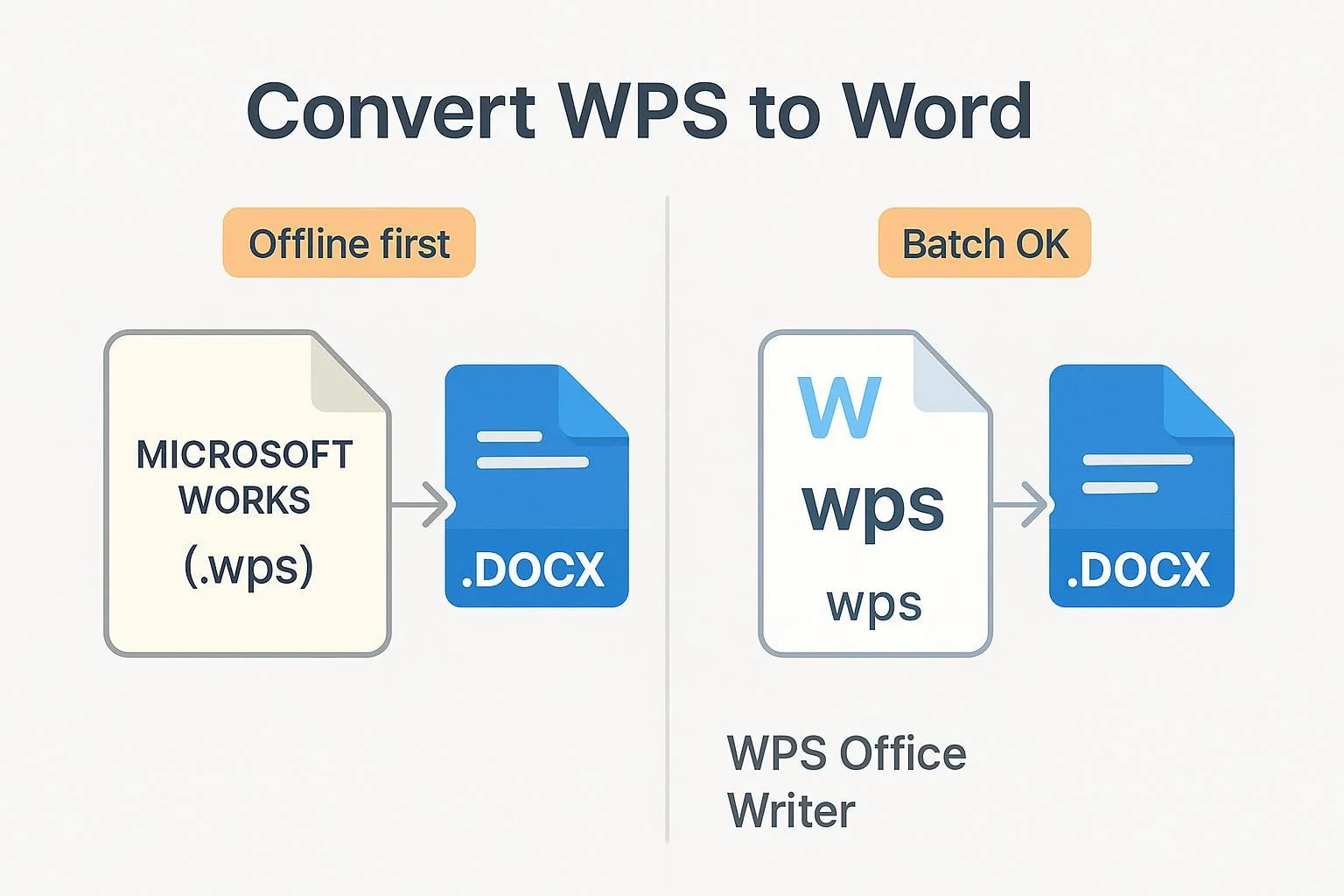
If you need to turn “WPS” into a Word document, you’re likely facing one of two jobs:
- Legacy Microsoft Works file (.wps) that won’t open in modern Word
- A document created in WPS Office Writer that you must deliver as .docx
This guide walks you through both, with fast paths, batch options, verification, and privacy‑safe choices. Upfront clarity: despite the title, there’s no official 1‑day “pass” for WPS or Microsoft 365; we’ll show practical short‑term options.
Before you start: Identify your file type in 60 seconds
- Windows: In File Explorer, View > Show > check “File name extensions.” Look at your file’s extension: is it .wps, .docx, or something else?
- macOS: In Finder, select the file > File > Get Info. Check “Name & Extension.”
What you have determines the path:
- If it’s .wps from Microsoft Works (older PCs, circa 1990s–2009), use the “Legacy .wps → .docx” section below.
- If it’s a WPS Office document you’re editing now (may already be .docx), use “Export from WPS Office Writer → .docx.”
Tip: The Works .wps format is long‑retired; modern Word doesn’t natively support it. Microsoft’s format documentation focuses on current Office formats, and community guidance generally points to third‑party conversion for Works files, as reflected in the 2024–2025 Microsoft pages on the topic: see the overview in Microsoft’s Office file format reference and the practical guidance in Microsoft Q&A on converting .wps files.
Fast path (one file, non‑sensitive)
- Prefer offline first for privacy. If you can install software: use LibreOffice Writer (free) to open the .wps and “Save As” .docx. Batch options available later.
- If you’re already in WPS Office Writer: use Menu > Save As > “Microsoft Word Document (*.docx).” The WPS team shows this path in their own walkthrough, such as the menu examples in the WPS blog guide on converting to Word.
- If you must go online (not recommended for sensitive files): pick a reputable converter and delete uploads afterward. See Privacy notes at the end.
Then verify in Word: open the .docx, check page count, lists, tables, and images. Run a compatibility check if the recipient uses older Word.
A) Legacy Microsoft Works .wps → .docx (Windows/macOS/Linux)
Microsoft Works files are a different .wps than WPS Office’s modern documents. Modern Word doesn’t include a Works import filter; community answers and Microsoft’s file format materials indicate you’ll need a converter or alternative editor for most .wps files. That’s why the methods below focus on LibreOffice/WPS Office and, as a last resort, online tools. For background on the Works format, Adobe’s overview of what a .wps file is is useful.
Method 1 — LibreOffice (offline; recommended)
Difficulty: Easy
Time: 2–5 minutes per file (seconds if batching)
Privacy: High (offline)
Steps (GUI):
- Install and open LibreOffice Writer.
- File > Open, set filter to “All files,” and select your .wps file.
- Review the import. If you see encoding prompts or garbled text, retry the open and try alternate encodings.
- File > Save As, set “Save as type” to “Microsoft Word 2007–365 (.docx),” then Save.
Batch conversion (headless CLI):
- Windows
"C:\Program Files\LibreOffice\program\soffice.exe" --headless --convert-to docx --outdir C:\Converted C:\Legacy\*.wps - macOS
/Applications/LibreOffice.app/Contents/MacOS/soffice --headless --convert-to docx --outdir ~/Converted ~/Legacy/*.wps - Linux
/usr/bin/soffice --headless --convert-to docx --outdir ~/Converted ~/Legacy/*.wps
The command syntax is documented by The Document Foundation in their FAQ on command‑line conversion: see TDF wiki: soffice --convert-to.
Verify:
- Open the resulting .docx in Word. Check page count, headings, lists/numbering, tables, images, and special characters.
- If recipients use older Word, run a compatibility check (steps in Section E).
Notes:
- Not every Works file imports perfectly. Different Works versions exist; if a batch shows issues, spot‑check samples and handle problematic files manually.
Method 2 — WPS Office Writer (offline)
Difficulty: Easy
Time: 1–3 minutes per file
Privacy: Medium–High (offline)
Steps:
- Open WPS Writer.
- Menu > Open, select the .wps file.
- Menu > Save As > choose “Microsoft Word Document (*.docx).”
WPS’s own tutorials show this Menu > Save As path; see the step examples in the WPS blog’s conversion guide.
Verify:
- Open the .docx in Word; scan layout, fonts, tables. Re‑apply styles if needed.
Method 3 — Online converter (use only for non‑sensitive files)
Difficulty: Easy
Time: ~1 minute per file
Privacy: Low (upload to third‑party)
Steps:
- Upload the .wps file to the converter.
- Choose .docx as the output.
- Download and open in Word; verify.
Caution: Review the service’s data retention policy and delete the upload if the service allows. Avoid this route for anything confidential.
B) Export from WPS Office Writer → .docx (modern WPS documents)
If you created or received a document in WPS Office (not a legacy Works file), exporting to Word format is straightforward.
Steps (Windows/macOS):
- Open the document in WPS Writer.
- Menu > Save As.
- In “Save as type,” select “Microsoft Word Document (*.docx).”
- Name the file and Save.
For basic menu paths and visuals, WPS’s own walkthroughs show this flow; see the WPS blog tutorial on converting to Word.
Fidelity tips before exporting:
- Use standard fonts common to Word (Calibri, Arial, Times New Roman). If recipients lack a font, Word will substitute.
- Normalize styles: apply Heading and List styles instead of manual formatting.
- Avoid text boxes for body text where possible; prefer normal paragraphs and table structures that travel well.
After exporting, open the .docx in Word and quickly scan spacing, list numbering, image positions, and table widths.
C) Verify compatibility and fidelity in Microsoft Word
A few minutes here prevents back‑and‑forth later.
- Run Word’s Compatibility Checker to catch features older versions may not support: File > Info > Check for Issues > Check Compatibility. Microsoft documents this flow in their guidance on managing compatibility mode for Office.
- Quick visual checks:
- Page count matches the original
- Hyperlinks work and aren’t duplicated
- Images anchor correctly (try “In line with text” if they drift)
- Tables render correctly; use AutoFit to Window if necessary
- List numbering stays consistent across sections
Pro tip: If layout shifts are subtle, use Review > Compare to compare against your original to spot differences quickly.
D) Troubleshooting (read this if anything looks off)
Word won’t open .wps at all
- Convert first using LibreOffice or WPS Office. Modern Word focuses on current formats; guidance across Microsoft’s documentation and forums aligns with using third‑party conversion for Works files—see the line of thinking represented by Microsoft’s file format reference and this Microsoft Q&A conversion thread.
Garbled characters or wrong encoding
- In LibreOffice, reopen and try different encoding options if prompted. If still broken, try another tool (WPS Office or a different converter) and compare outputs.
Missing or substituted fonts
- In Word: File > Options > Save > embed fonts to keep appearance consistent (file size grows). Or replace with common fonts installed on the recipient’s machine.
Lists, numbering, or tables misaligned
- Reapply paragraph/list styles in Word. For tables: Table Layout > AutoFit > AutoFit to Window; set preferred column widths.
Images moved or missing
- Set images to “In line with text” for stability, or fix anchor positions. In a pinch, paste images from the original if they failed to import.
Password‑protected files
- You’ll need the password. Try both LibreOffice and WPS Writer if one app fails to open the file after password entry.
Batch conversion inconsistencies
- Spot‑check a few files per source folder before trusting a large batch. For failures, convert those specific files via GUI and review manually.
E) “Day‑Pass” reality check (and what actually works for short‑term needs)
WPS Office: We could not find an official one‑day “pass.” WPS lists consumer plans on its official purchase pages as monthly/annual with occasional trials. See the current lineup on the WPS buy page. If you only need export, the free tier often handles basic Save As to .docx; premium features require a subscription.
Microsoft 365 (Word): Microsoft offers monthly/annual subscriptions and free trials; there is no per‑day SKU described in Microsoft’s official materials. See Microsoft’s guidance on trying or buying Microsoft 365.
Practical short‑term options:
- Use LibreOffice (free) to convert legacy .wps files offline; it’s reliable for many Works documents.
- If you need Word specifically, consider a monthly plan and cancel before the next billing cycle (respect the service terms).
- For non‑sensitive, one‑off conversions, an online tool can be quickest—download, verify, and delete promptly.
F) FAQs and pro tips
How do I know whether my .wps is “Works” or “WPS Office”?
- If it came from an old Windows PC (pre‑2010) or backup media, it’s likely Microsoft Works. Try LibreOffice first. If you created it recently in WPS Office, open it in WPS and Save As .docx.
Which method best preserves layout?
- There’s no universal winner. For Works .wps, LibreOffice tends to be the most dependable offline import. For WPS Office docs, exporting directly from WPS to .docx keeps styles intact if you standardized fonts and styles first.
Can Word open .wps directly?
- Not reliably in modern versions. Microsoft’s current documentation emphasizes supported Office formats, and community guidance points to using converters for Works files (see references above).
Can I batch‑convert hundreds of .wps files?
- Yes, use LibreOffice headless CLI (see the commands in Section A). Spot‑check output before distributing.
G) Privacy‑first workflow (highly recommended)
- Prefer offline tools (LibreOffice, WPS Office) for confidential or regulated data.
- If you must use an online converter, read the vendor’s retention policy, use copies, and delete uploads promptly.
- Keep originals. Store the source .wps alongside the converted .docx so you can retry with another method if needed.
Reference links cited in this guide
- Microsoft – Office file format reference (2024–2025): Office file format reference
- Microsoft Q&A (2024–2025) on converting .wps: How to convert WPS files to Word
- The Document Foundation – CLI conversion syntax: soffice --convert-to FAQ
- WPS Office blog – converting WPS to Word: How to convert a WPS to Word
- Adobe – format explainer: What is a WPS file?
- Microsoft – Manage compatibility mode: Manage compatibility mode for Office
- WPS Office – Plans and pricing: WPS buy page
- Microsoft Support – subscriptions/trials: Try or buy Microsoft 365