
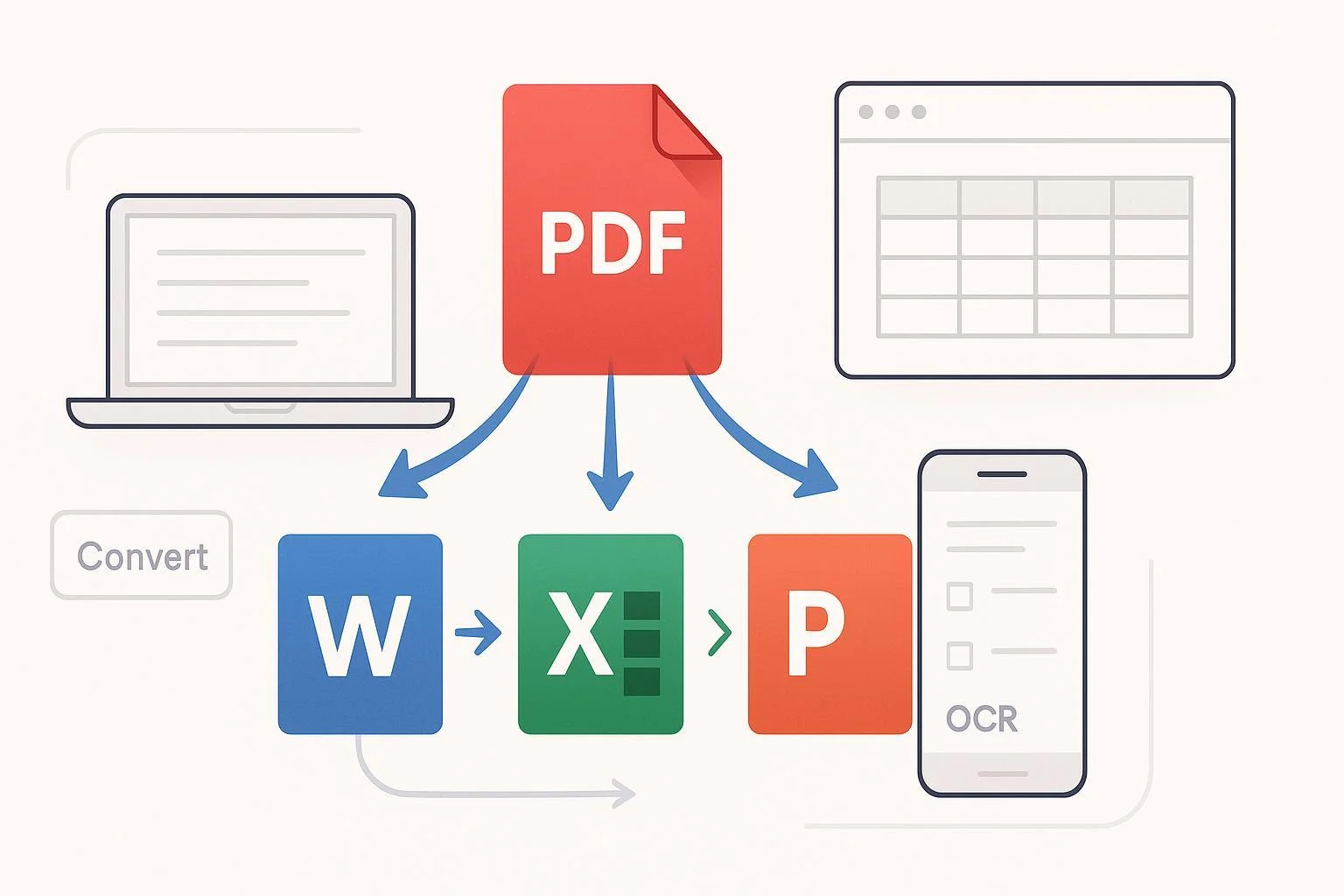
You’re here to turn a PDF into an editable Word, Excel, or PowerPoint—quickly, accurately, and safely. This guide walks you through WPS on Windows, macOS, iOS, Android, and the web. You’ll also learn when to use OCR for scanned PDFs, how to batch-convert, what to do when files are huge, and how to protect sensitive information.
- Difficulty: Easy to moderate (OCR and complex layouts add a bit of nuance)
- Time: 5–15 minutes per file in typical cases (longer for big or scanned PDFs)
- What you need: WPS on your device or a browser, stable storage, optional internet for web/mobile cloud features, and enough local disk space
From experience: the fastest path is to pick the right target format up front (Word for documents, Excel for tables, PPT for slides) and run OCR first if the PDF is actually a scan (image-only).
Before you start: Make the right choices
- Choose the correct target:
- Word (DOCX): narrative documents, reports, essays
- Excel (XLSX): tables, invoices, forms with structured data
- PowerPoint (PPTX): slide decks and poster-style content
- Decide offline vs online:
- Desktop (Windows/macOS) lets you convert locally—best for privacy-sensitive files. WPS notes desktop conversion keeps files on your device; see the privacy positioning in the WPS Academy note on local processing.
- Web conversion runs on processing servers (fast and convenient for general use), as described on the WPS All‑in‑One PDF Converter.
- Check if you need OCR:
- If you can’t select or search text in the PDF, it’s image-only. You’ll need OCR to make text editable. WPS describes OCR capabilities on the PDF OCR feature page.
Pro tip: If fidelity matters (class grade, client invoice totals), convert a small page range first to preview results, then run the whole file.
Windows and macOS (Desktop): Fast, private, and batch-friendly
This is the most reliable path for sensitive or large jobs because it processes locally and supports batching.
- Open the PDF in WPS PDF Editor
- Double‑click your PDF to open in WPS. If it opens in Reader mode, switch to the PDF editing/conversion interface.
- Check if text is selectable. If not, you’ll run OCR in step 3.
Checkpoint: Try Ctrl/Cmd+F and search for a word. If nothing highlights, plan to run OCR.
- Convert to your target format (Word/Excel/PPT)
- Look for Convert, Export, or a PDF to Word/Excel/PPT button in the toolbar.
- Choose the target format (DOCX/XLSX/PPTX) and confirm the destination folder.
- If you only need certain pages, look for a Page Range option. If you can’t find it, use Split/Extract Pages first, then convert the smaller file.
Checkpoint: Open the result in WPS Writer/Spreadsheet/Presentation. Confirm fonts, images, and page count.
- Handle scanned PDFs with OCR (if needed)
- If the PDF is image-only, run OCR first. The WPS online guide shows “Perform OCR” and a path via Tools > OCR Text Recognition; see the walkthrough in How to OCR the PDF.
- Select the correct language to improve recognition.
- Re‑run the conversion to Word/Excel/PPT after OCR finishes.
Checkpoint: Press Ctrl/Cmd+F in the output and search a phrase with special characters or accents to confirm real text.
- Batch‑convert multiple PDFs (desktop)
- In WPS PDF tools, open the Batch features (often labeled Batch or grouped under a Batch tab).
- Choose the batch mode (PDF→Word, PDF→Excel, PDF→PPT), add files, set output, and convert. WPS demonstrates these options in the batch PDF convert feature overview.
Checkpoint: Spot‑check a few outputs from the batch—at least the first page and any table‑heavy or image‑heavy pages.
From experience: For table‑centric documents, convert directly to Excel rather than Word. You’ll get more usable columns with less cleanup.
iOS and Android (Mobile): Handy for quick wins
Mobile is excellent for quick, simple conversions and basic OCR via the scanner. For large or sensitive files, prefer desktop.
- Convert an on‑device PDF
- Open WPS on your phone, locate and open the PDF.
- Tap Tools or PDF tools and select Convert to Word/Excel/PPT.
- Choose the target and confirm save location.
Checkpoint: Open the converted file in WPS Writer/Spreadsheet/Presentation on your phone and verify that text is editable and images appear.
- OCR from scans or image‑only PDFs
- Use the in‑app scanner (often under a + button, Doc Scanner, or similar). Extract text or convert to a format. WPS highlights mobile AI‑powered tools and conversion support in the WPS Office App Store listing.
- Network may be required for advanced AI/OCR. If accuracy matters, scan in good light with pages flat.
Checkpoint: After OCR, copy a sentence with numbers or symbols and paste it into a note to confirm clean recognition.
From experience: Batch on mobile is limited. For many files, move them to desktop to run a single batch job.
Web (Browser): The quick universal option
Use WPS’s online tools when you don’t have the desktop app or when collaboration/download simplicity matters.
- Pick the right online tool
- For documents: PDF to Word on pdf.wps.com
- For spreadsheets: PDF to Excel on pdf.wps.com
- For slides: PDF to PowerPoint on pdf.wps.com
- Upload, convert, download
- Click Select PDF, upload your file, and choose the output format if prompted.
- Optional: enable OCR for scanned PDFs when available.
- Download the converted file and open it locally to review.
Checkpoint: Compare page 1 side‑by‑side with the original PDF. Confirm headings, table alignment, and logos/images.
Notes:
- The web tool runs on servers (fast and convenient). For confidential files, prefer desktop offline conversion.
- Uploads can fail for very large files or slow connections. Split a big PDF into smaller chunks and convert separately if needed.
OCR: How to get clean, editable text from scans
- How to tell you need OCR: If you can’t select text in the PDF or Find/Search doesn’t work, it’s likely an image-only scan.
- Where to run OCR in WPS: Look for a “Perform OCR” prompt in the PDF editor or go to Tools > OCR Text Recognition. WPS explains this flow in How to OCR the PDF and the PDF OCR feature overview.
- Language: Pick the correct language in OCR settings to avoid character mistakes.
- Accuracy tips (general best practices):
- Use clear scans; 300 dpi is a common sweet spot for printed text.
- Keep pages flat, well‑lit (for mobile scans), and crop out backgrounds.
- If tables are the goal, run OCR, then convert to Excel.
Checkpoint: After OCR + conversion, press Ctrl/Cmd+F in the output for a unique word; confirm it highlights and is selectable.
Get better fidelity and faster results
- Match output to content:
- Word for long-form text; Excel for tables; PPT for slide-like layouts.
- Respect fonts:
- If characters look garbled, install the missing fonts on your system and re‑convert. If possible, re‑export the original PDF with embedded fonts before converting.
- Favor the Excel path for tables:
- Converting tables directly to Excel saves cleanup. After conversion, use Data > Text to Columns and auto‑fit columns to finalize.
- Convert in parts if layout breaks:
- For very complex multi‑column layouts, convert a page range or section at a time. It’s often easier to stitch together well‑converted sections than to fix a messy full‑document convert.
- Use Batch on desktop for many files:
- It’s faster and more consistent than converting one by one; see the WPS batch PDF convert overview.
Privacy basics for students and SMEs
- Prefer desktop for sensitive documents:
- Local conversion reduces exposure. WPS describes desktop conversion as local processing in the WPS Academy note on local processing.
- Understand server processing online:
- Web tools convert via cloud servers, highlighted on the WPS All‑in‑One PDF Converter page. Avoid uploading confidential data unless policy allows it.
- Redact before upload:
- If you must use web/mobile cloud features, remove personal or confidential details first or mask them.
- Check organizational policies:
- SMEs handling PII should ensure conversions comply with local laws and internal data policies.
Troubleshooting: If X happens, try Y
The output text isn’t editable/searchable
- Run OCR first (look for “Perform OCR” or Tools > OCR Text Recognition) and reconvert. See the steps in How to OCR the PDF.
Characters look garbled or symbols are wrong
- Install/enable the fonts used in the original; re‑convert to DOCX/PPTX/XLSX. If you control the source, re‑export the PDF with embedded fonts.
Tables come out messy in Word
- Convert the PDF directly to Excel instead and clean up with Text to Columns and auto‑fit.
Images are missing or misplaced
- Re‑run the conversion; if critical, extract images from the PDF and reinsert them in the target document.
Online conversion fails or times out
- Compress or split the PDF and try again; prefer desktop offline conversion for large files or slow networks.
You can’t find a Page Range option
- Use Split/Extract to isolate the pages you need, then convert the smaller file.
The conversion fails repeatedly
- Update WPS and try a different device or the desktop client. WPS outlines recovery steps in the help article What to do if the PDF conversion fails.
Quick checklists you can reuse
After any conversion
- Open in the target app (Writer/Spreadsheet/Presentation)
- Press Ctrl/Cmd+F to confirm text is searchable
- Compare page 1 against the PDF: headings, tables, images
- For numbers/tables: confirm column alignment and formats
Before converting scanned PDFs
- Confirm you can’t select text (so OCR is needed)
- Choose the correct OCR language
- Ensure clear scans (aim ~300 dpi) and flat pages
When handling many files
- Prefer desktop batch conversion
- Test one file first; then queue the rest
- Spot‑check a few results from the batch
Where these capabilities come from (for your confidence)
- WPS documents conversion coverage (PDF→DOCX/XLSX/PPTX) and online processing notes are outlined on the WPS All‑in‑One PDF Converter page.
- Batch tools for PDFs are shown in the WPS blog on batch PDF convert, merge & compress.
- OCR features and how to trigger them are described in the WPS PDF OCR feature overview and the step guide How to OCR the PDF.
- The online converter entry points are available at PDF to Word, PDF to Excel, and PDF to PowerPoint.
- The iOS app listing highlights mobile conversion and AI tools: WPS Office on the App Store.
You’re set. Pick your platform, follow the steps, and use the checkpoints to validate results. When in doubt, run OCR first, convert in the format that matches your content, and prefer desktop for sensitive or heavy workloads.