
Introduction
Flowcharts play a crucial role in project management, task planning, and educational presentations. They provide a clear visual representation of processes, making it easier to communicate ideas, identify bottlenecks, and streamline workflows. Choosing a highly efficient and easy-to-use flowchart tool can significantly enhance productivity and collaboration, whether for individual projects, team-based work, or classroom instruction. This article provides a comprehensive overview of popular flowchart platforms, compares their features, highlights ideal use cases, and offers practical tips for maximizing workflow efficiency.
Overview of Popular Flow Chart Tools
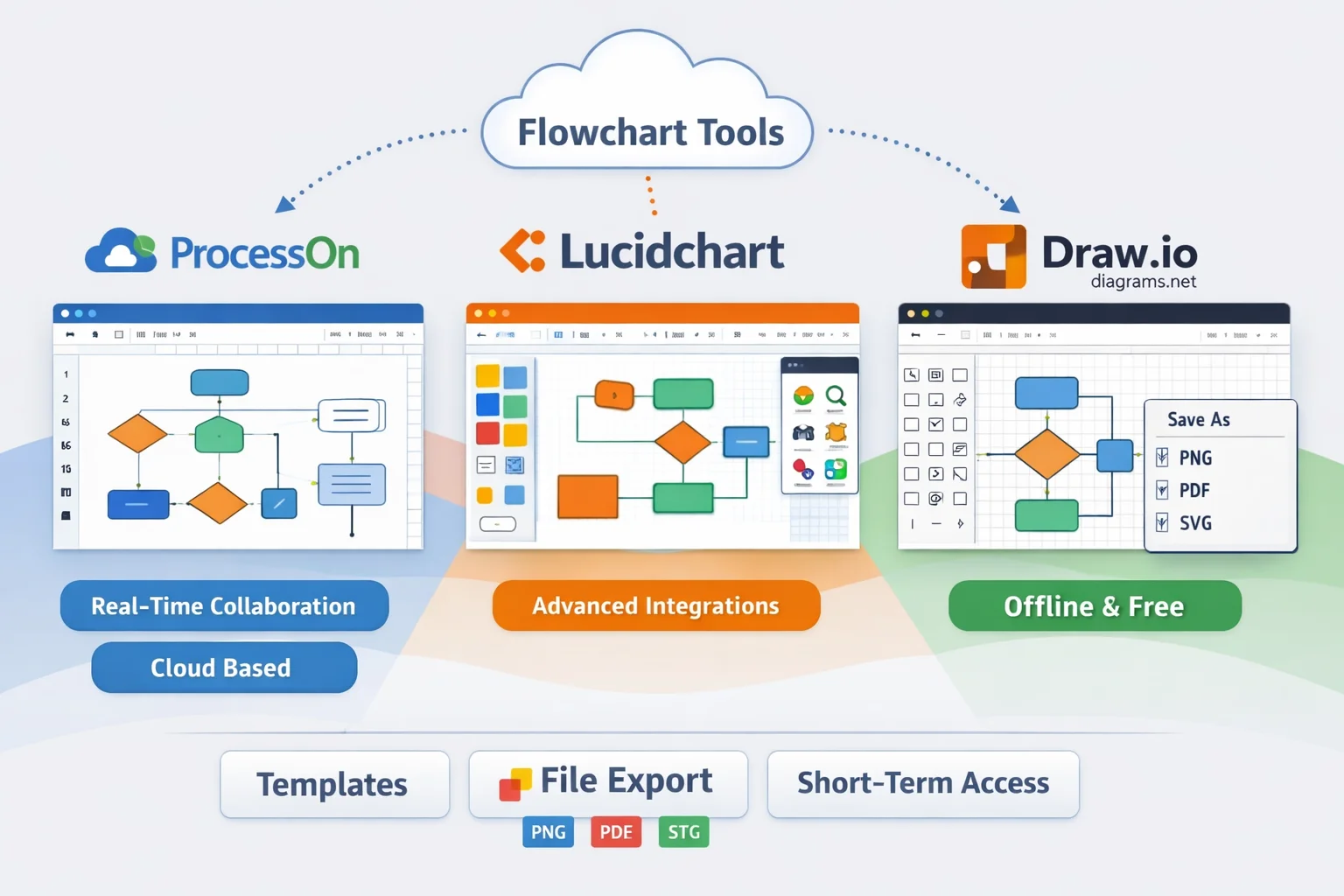
Several online and offline tools have emerged as leaders in the diagramming space. Among the most widely used are ProcessOn official site, Lucidchart flowchart maker, and draw.io (diagrams.net) official.
Online Tools
ProcessOn is a cloud-based diagramming platform that allows users to create flowcharts, UML diagrams, ER diagrams, mind maps, and network diagrams. Its key online features include real-time collaboration with multiple users editing simultaneously, cloud-based storage with version history, and a drag-and-drop interface that simplifies diagram creation. Templates are available for quick setup, and the platform supports importing and exporting files in formats such as PNG, PDF, SVG, and Visio. ProcessOn offers a free tier and a paid plan starting at around $9.90 per month for individual users, making it accessible for both personal and team use (ProcessOn official site).
Lucidchart is another web-based diagramming tool that excels in flowcharts, process mapping, mind maps, and UX diagrams. It provides seamless integration with productivity suites such as Microsoft 365, Google Workspace, Jira, and Slack. Lucidchart offers a Free plan with basic templates and limited documents, while paid plans range from approximately $7.95–$10 per month per user, unlocking additional templates, collaborative features, and advanced integrations (Lucidchart overview on Wikipedia). User reviews generally praise its ease of use and integration capabilities, though some note subscription management and pricing as considerations.
Desktop/Offline Tools
Draw.io (diagrams.net) is a free, open-source diagramming tool available both online and as desktop software compatible with Windows, Mac, and Linux. Users can store diagrams locally or integrate with cloud services like Google Drive, OneDrive, and Atlassian Confluence. Being open-source, Draw.io allows complete control over diagrams without subscription fees, offering a strong advantage in privacy and offline access (diagrams.net on Wikipedia).
Tool Use Cases
- Team Collaboration: ProcessOn enables multiple users to work together in real-time, making it ideal for corporate teams or project groups.
- Enterprise Process Mapping: Lucidchart offers robust integrations with business software, suitable for optimizing enterprise workflows.
- Quick Drafting or Offline Work: Draw.io provides a lightweight solution for fast diagram creation without requiring a subscription or cloud dependency.
Temporary or short-term projects may benefit from flexible access options, allowing users to unlock premium features for brief periods when necessary.
Feature Comparison and Use Cases
Comparison Table of Key Features
| Feature | ProcessOn | Lucidchart | Draw.io (diagrams.net) | Short-Term Access Option |
|---|---|---|---|---|
| Pricing | Free tier; Personal paid plan ~$9.90/mo | Free plan; Individual ~$7.95–$9/mo; Team ~$9–$10/user/mo | Free; Open-source | Temporary premium access can be unlocked via short-term activation codes for 1/3/7/30 days |
| Online Collaboration | Real-time multi-user editing | Real-time collaboration; integrations with MS 365, Google Workspace, Slack | Limited; primarily offline or cloud storage sync | Applicable if platform supports short-term activation |
| Templates | Extensive pre-built templates | Large variety of templates; advanced templates in paid plans | Basic templates; open-source customization | Advanced templates may require short-term access |
| File Export Options | PNG, PDF, SVG, Visio | PNG, PDF, SVG, Visio, Microsoft formats | PNG, PDF, SVG, XML | Short-term access may unlock export to enterprise formats |
| Advanced Features | Auto-layout, process verification | Conditional formatting, integrations, automation | Manual layout, extensive customization | Some features may be temporarily unlocked via activation codes |
Use Cases and Ideal Scenarios
- ProcessOn: Best for teams needing real-time collaboration, cloud-based storage, and project management visualization. Ideal for small to medium businesses and online courses.
- Lucidchart: Suited for enterprise process optimization, workflow documentation, and integration with productivity suites. Recommended for corporate users requiring professional templates and automation.
- Draw.io (diagrams.net): Ideal for individual users, quick drafting, offline diagramming, and privacy-conscious projects. Provides full diagram control without subscription costs.
Accessing Free or Short-Term Trials
Most online flowchart tools offer free versions or trial periods to help users evaluate features:
- ProcessOn: Free plan includes essential templates and online collaboration. Paid plans unlock advanced templates and additional storage.
- Lucidchart: Free plan offers limited diagrams and templates. Paid subscriptions expand access to collaboration features and professional templates.
- Draw.io: Fully free with offline support, no login required.
For temporary projects, short-term activation codes can provide premium access for 1, 3, 7, or 30 days, enabling users to utilize advanced templates, export formats, and collaboration features without long-term commitment (short-term activation codes guide).
Tips, Templates, and Workflow Best Practices
Using Templates Effectively
Templates can drastically reduce setup time:
- Choose templates based on diagram type (e.g., flowchart, BPMN, UML).
- Customize color schemes, node styles, and layout to align with project or brand requirements.
- Advanced templates and features in ProcessOn and Lucidchart can be unlocked temporarily via short-term activation codes for time-sensitive projects.
Workflow and Drawing Tips
- Auto Layouts: Use automatic node alignment and spacing to maintain readability.
- Color Coding: Differentiate process steps using consistent colors to indicate categories or priority.
- Keyboard Shortcuts: Learn tool-specific shortcuts for faster diagramming.
- Collaboration: Share editable links for team review; maintain version history for tracking changes.
Downloading or Installing Flow Chart Tools
Desktop and offline usage offer advantages for privacy, performance, and independence from internet connectivity:
- ProcessOn: Primarily web-based; offline desktop use is limited but available via web wrapper tools.
- Lucidchart: Web-focused; offline editing requires third-party integrations or PDF exports.
- Draw.io: Desktop apps available for Windows, Mac, and Linux. Users can save diagrams locally or to cloud storage for multi-device access (Draw.io official site).
Advanced features in desktop versions can sometimes be temporarily unlocked via short-term activation codes, providing flexibility for brief projects without committing to long-term subscriptions.
Frequently Asked Questions (FAQ)
Which tool is best for team collaboration?
ProcessOn excels in real-time team collaboration with multiple editors and cloud storage, while Lucidchart supports integration with productivity tools for enterprise collaboration. Draw.io is more suitable for individual work or small teams.
What features can be unlocked with short-term activation codes?
Short-term activation codes allow temporary access to premium templates, advanced export formats, workflow automation, and extended collaboration features, making them ideal for time-sensitive projects.
What are the main differences between free and paid versions?
Free versions typically limit templates, collaboration capabilities, storage space, and export formats. Paid or activated versions unlock advanced features, professional templates, and enterprise-grade integrations.
Can I draw offline and export to multiple formats?
Draw.io allows full offline creation and multiple export formats. ProcessOn and Lucidchart primarily require internet access for full functionality but support offline exports through PDF or image formats.
Summary
By understanding the strengths, limitations, and pricing structures of ProcessOn, Lucidchart, and Draw.io, users can select the flowchart tool that best aligns with their project needs, workflow preferences, and collaboration requirements. Utilizing temporary access solutions such as short-term activation codes can further enhance flexibility and efficiency, enabling professionals and teams to achieve optimal results in both short-term and ongoing projects.
References & Resources
- ProcessOn official site
- Lucidchart flowchart maker
- draw.io (diagrams.net) official
- Lucidchart overview on Wikipedia
- diagrams.net (draw.io) on Wikipedia
- Best flowchart and diagram software comparison
- Free Web Tools to Create Flowchart and Data Flow Diagram list
- ShortKey official website
- ShortKey’s service content introduction
- short-term activation codes guide