
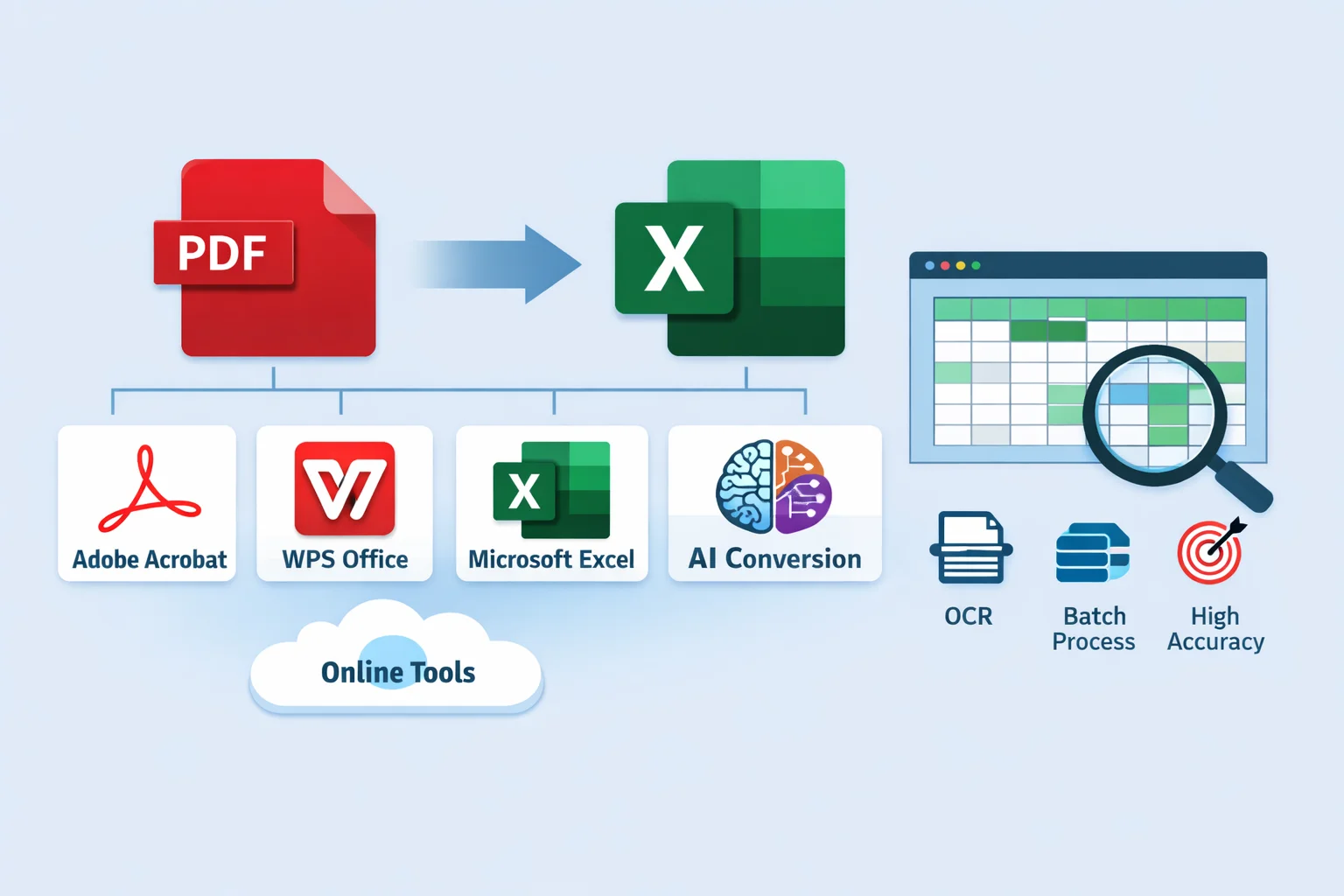
Converting PDF files containing tables or structured data into Excel spreadsheets is a frequent task for professionals, students, and office workers. Whether for data analysis, reporting, or editing, the goal is to preserve accuracy, formatting, and usability. However, PDF to Excel conversion often presents challenges such as misaligned tables, merged cells, or formatting loss. This article provides a comprehensive guide on methods, tools, and best practices to convert PDFs to Excel efficiently and accurately.
Common Methods to Convert PDF to Excel
Using Desktop Software
Desktop software solutions offer offline processing, high security, and support for batch operations. Major options include:
Adobe Acrobat: Adobe Acrobat provides a reliable PDF to Excel converter, preserving tables, rows, and columns. Its offline variant, Adobe Acrobat Pro, allows batch processing and advanced formatting retention. Files are handled securely during upload and can be removed from Adobe cloud after conversion. (Adobe Acrobat pricing)
WPS Office: The WPS Office PDF to Excel tool supports OCR extraction, layout retention, and batch conversion. Available on Windows, Mac, Android, and iOS, it integrates with cloud storage for collaborative workflows.
Microsoft Excel: Modern Excel versions with Microsoft 365 include Power Query to import tables from PDFs directly. This method allows structured table extraction without additional software, though it is limited by version compatibility. (Power Query for PDF import)
Desktop Software Comparison Table
| Feature | Adobe Acrobat | WPS Office | Microsoft Excel |
|---|---|---|---|
| Accuracy | High | High | Medium (depends on table complexity) |
| Formatting Retention | Excellent | Excellent | Moderate |
| Batch Conversion | Yes (Pro) | Yes | Limited |
| Offline Capability | Yes | Yes | Limited |
| Platform Support | Windows, Mac, Linux, iOS, Android | Windows, Mac, Android, iOS | Windows (Power Query) |
For occasional or one-time needs, desktop software can be accessed via ShortKey short-term licenses ranging from 3–30 days, offering flexibility without a full subscription.
Using Online Tools
Online tools provide fast and convenient PDF to Excel conversion without installation. Popular options include:
- Adobe Acrobat PDF to Excel Converter – Simple drag-and-drop interface with secure file handling.
- Smallpdf PDF to Excel Tool – Offers OCR for scanned PDFs, with integration to cloud services and mobile apps.
- iLovePDF PDF to Excel Converter – Free basic usage, secure HTTPS encryption, premium plans available for larger files.
Advantages of Online Tools
- No installation required
- Quick for small or simple files
- Accessible on any device with a browser
Limitations
- File size restrictions (e.g., iLovePDF ~15MB for free)
- Privacy concerns when handling sensitive documents
- Formatting retention may be less reliable compared to desktop software
| Tool | Accuracy | File Limits | Ease of Use | Special Features |
|---|---|---|---|---|
| Adobe Acrobat | High | N/A | High | Cloud integration, secure deletion |
| Smallpdf | High | Limited for free users | High | OCR, batch processing, cloud apps |
| iLovePDF | Medium | ~15MB free | High | OCR (premium), secure transmission |
AI-Powered Conversion Platforms
AI-assisted tools leverage machine learning for table recognition and layout retention, especially for complex or scanned PDFs. Advantages include:
- Better detection of irregular or merged tables
- Higher accuracy for scanned documents using OCR
- Automation of repetitive conversion tasks
A typical AI workflow involves uploading a PDF, allowing the AI to detect tables, and exporting a structured Excel sheet. AI-enabled platforms can also be accessed via short-term licenses for temporary, high-accuracy conversion needs, making them suitable for occasional tasks without a full subscription.
Comparison of PDF to Excel Tools
| Category | Examples | Free vs Paid | Accuracy | Batch Processing | Platform Support |
|---|---|---|---|---|---|
| Desktop Software | Adobe Acrobat, WPS Office, Excel | Paid / Short-term license | High | Yes | Windows, Mac, Linux, iOS, Android |
| Online Tools | Adobe, Smallpdf, iLovePDF | Free / Premium | Medium-High | Limited | Cross-platform |
| AI Platforms | AI PDF converters (OCR-enabled) | Paid / Short-term | High | Yes | Web-based, Cloud |
Short-term software access via ShortKey licenses provides a practical way to use desktop or AI solutions without long-term commitment, especially for one-off batch tasks.
Step-by-Step Conversion Tutorials
Converting a Single PDF to Excel
- Open the chosen software or online tool.
- Upload the PDF file.
- Verify table recognition and adjust settings (e.g., OCR, layout retention).
- Export as Excel and review formatting.
- Apply minor edits to correct misaligned cells if needed.
Tips: Retain header rows, check merged cells, and preview conversion before final export.
Batch Conversion for Multiple PDFs
- Use desktop tools like WPS Office or AI-enabled platforms to queue multiple files.
- Verify batch settings for consistent formatting across files.
- Temporary licenses from ShortKey allow batch processing without a subscription.
Optimizing Conversion Accuracy
- Enable OCR for scanned documents
- Use AI or advanced desktop tools for complex tables
- Avoid excessive formatting in PDFs before conversion
- Conduct post-conversion validation to catch misaligned or merged cells
Best Practices and Tips for PDF to Excel Conversion
- Formatting: Preserve tables, headers, and formulas whenever possible.
- File Management: Adopt naming conventions, version control, and folder organization.
- Efficiency: Use batch conversion, keyboard shortcuts, and automation features.
- Data Validation: Verify imported data, remove duplicates, and correct formatting errors post-conversion.
Frequently Asked Questions (FAQ)
What is the most accurate method to convert PDF tables to Excel?
Desktop software like Adobe Acrobat and AI-assisted platforms generally offer the highest accuracy, particularly for complex tables. Short-term license options provide temporary access to premium software for occasional high-accuracy needs.
Can I convert multiple PDFs at once?
Yes, batch processing is supported by desktop software such as WPS Office and AI-powered platforms. Online tools may have limits on simultaneous conversions. Short-term licenses allow temporary access for batch operations without subscription.
Are there free ways to convert PDFs to Excel?
Free online tools like iLovePDF and Smallpdf offer basic conversion. Trade-offs include file size limits, fewer formatting retention features, and daily usage restrictions.
How to maintain original table formatting and formulas?
- Use desktop software with advanced PDF to Excel features (Adobe Acrobat, WPS Office)
- Enable OCR for scanned PDFs
- Validate data post-conversion and adjust layout for merged cells or missing formulas
- Consider AI-assisted platforms for automated layout retention
Conclusion
Converting PDFs to Excel effectively requires balancing accuracy, file complexity, and workflow needs. Desktop software excels in precision and batch processing, online tools provide convenience and accessibility, and AI-powered platforms enhance table detection and formatting retention. For occasional or short-term requirements, temporary access through ShortKey.ai licenses offers a flexible, cost-efficient solution. By selecting the right tool and following best practices, users can maintain data integrity, streamline workflows, and achieve reliable PDF to Excel conversion outcomes.
References
- ShortKey official website
- Guide to short-term activation codes
- ShortKey service overview
- Adobe Acrobat PDF to Excel Converter
- Smallpdf PDF to Excel Tool
- iLovePDF PDF to Excel Converter
- Smallpdf suite of PDF tools
- iLovePDF guide to PDF table conversion
- Smallpdf conversion guide
- Smallpdf company overview