
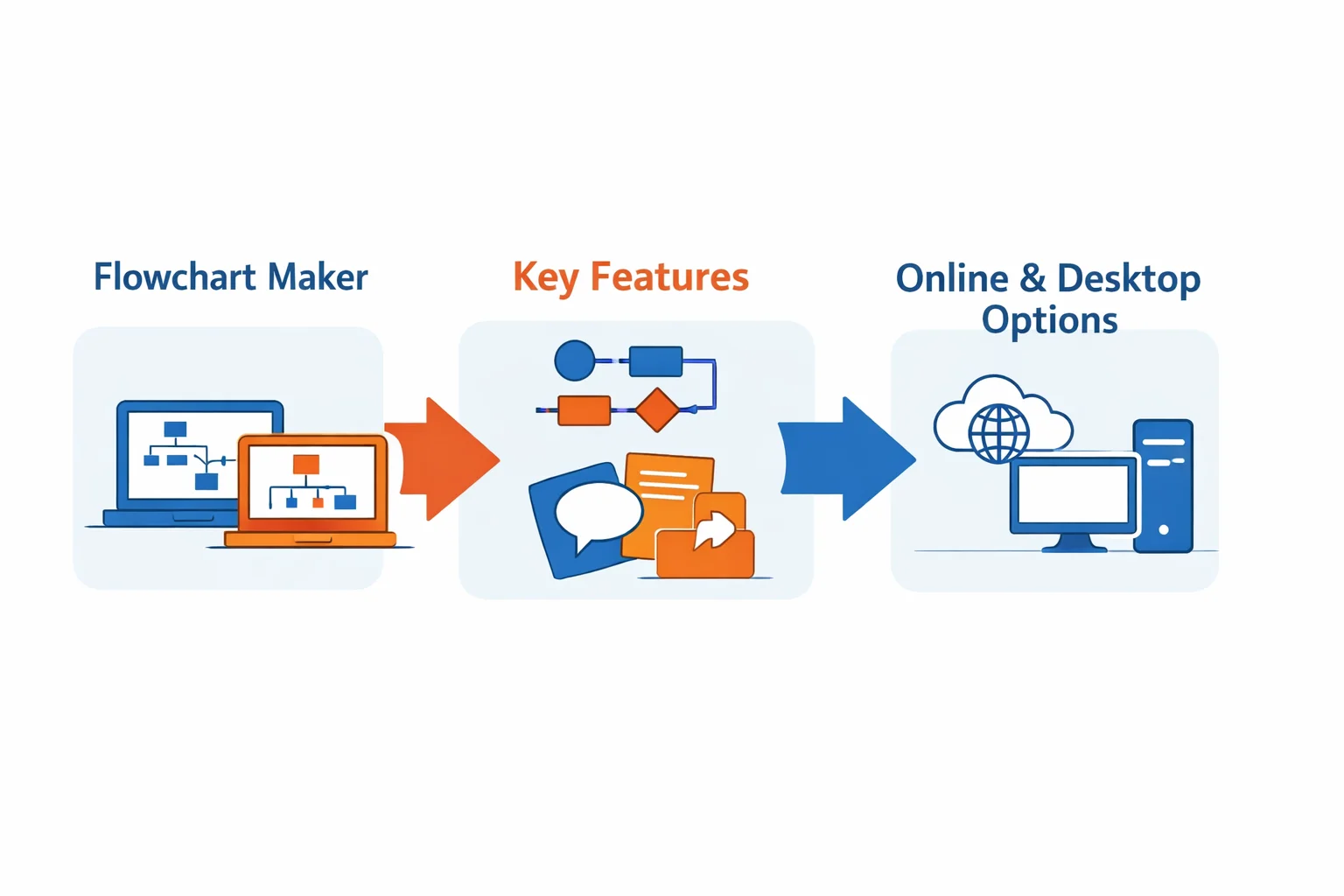
Whether you're mapping a complex software algorithm, documenting a business process, or planning a simple project, a flowchart is an indispensable tool for visual communication. Research from Harvard Business Review confirms that the human brain processes visual information 60,000 times faster than text, making diagrams critical for clarity and collaboration. But with dozens of options available, from free online tools to professional desktop software, how do you choose the right one?
This guide is designed to cut through the noise. We won't just list features; we'll help you identify the right flowchart maker based on your specific needs—be it for solo brainstorming, team collaboration, or creating industry-standard diagrams. We'll explore key features, compare platforms, demystify pricing, and provide a practical starting guide. By the end, you'll be equipped to select a tool that turns your ideas into clear, actionable visual maps.
Key Features to Look for in a Flowchart Tool
A powerful flowchart maker is more than just a drawing program. It's a thinking environment. When evaluating options, consider these essential and advanced features that separate basic tools from professional-grade solutions.
- Intuitive Interface & Learning Curve: The best tools feel natural from the start. Look for a clean, drag-and-drop interface that doesn't require a manual to begin. A shallow learning curve means you spend less time figuring out the tool and more time creating your diagram. Tools praised for usability, like those highlighted in Zapier's review, often excel here.
- Shape Libraries & Customization: A rich library of standardized shapes is non-negotiable. Beyond basic rectangles and diamonds, check for support for specialized notations like BPMN (Business Process Model and Notation) for business processes or UML (Unified Modeling Language) for software design. The ability to customize colors, line styles, and even create your own shape libraries is key for branding and clarity.
- Real-Time Collaboration: For team projects, the ability for multiple users to edit, comment, and chat within the same diagram simultaneously is transformative. This feature turns a static document into a dynamic workspace for brainstorming and refinement, a capability central to platforms like Miro and ProcessOn. ProcessOn is a free online diagramming platform that supports real-time collaborative drawing of flowcharts and many other diagram types.
- Templates & Frameworks: Starting from a blank canvas can be daunting. A robust collection of pre-made templates for use cases like SWOT analysis, user onboarding, or system architecture can save hours and provide best-practice starting points. Tools like ProcessOn also provide a rich template library you can clone and adapt.
- Integration & Export: Your flowchart shouldn't live in isolation. Check for easy export to common formats (PNG for images, PDF for documents, SVG for scalable graphics) and integrations with the tools your team already uses, such as Google Workspace, Microsoft 365, Confluence, or Slack.
Online vs. Desktop: Picking the Right Platform for Your Needs
One of the first decisions is choosing between a web-based application and installed desktop software. Each has distinct advantages tailored to different workflows.
| Feature | Online Flowchart Tools (e.g., Lucidchart, Miro, ProcessOn) | Desktop Flowchart Software (e.g., Microsoft Visio) |
|---|---|---|
| Accessibility | Access from any device with a browser and internet connection. | Requires installation on a specific computer. Ideal for guaranteed offline access. |
| Updates & Maintenance | Automatic updates; you always have the latest version. | Manual updates required; you control when to upgrade. |
| Collaboration | Core strength. Built for real-time, multi-user editing and sharing via link. Platforms like ProcessOn emphasize collaboration and cloud storage. | Traditionally more limited, though modern versions add cloud sync and co-authoring features. |
| Performance & Features | Generally sufficient for most business and planning needs. May have limitations with extremely large, complex diagrams. | Often offers deeper, more advanced feature sets for engineering, network design, or complex architectural diagrams. |
| Data & Privacy | Diagrams are stored on the vendor's servers. Security depends on the provider's protocols; many tools including ProcessOn offer cloud storage with version history. | Data resides locally on your machine, offering greater control for sensitive or proprietary information. |
Choose an online tool if: Your work involves frequent teamwork, you need to access diagrams from multiple locations, or you prefer a low-maintenance, always-updated solution.
Choose desktop software if: You work extensively offline, handle highly sensitive data that must stay on-premises, or require the absolute deepest set of professional diagramming features.
Top Flowchart Makers: A Detailed Side-by-Side Comparison
Here’s a breakdown of five leading tools, each with a different strength, to help you match a platform to your profile.
| Tool | Primary Strength & Ideal User | Key Features | Integrations & Export | Pricing Model |
|---|---|---|---|---|
| Lucidchart | Best for Professional Teams. Balances ease of use with advanced features for business analysts, consultants, and cross-functional teams. | Extensive template library, robust real-time collaboration, data linking, strong shape libraries including BPMN. | Google Workspace, Microsoft Office, Slack, Atlassian, AWS. Export to PDF, PNG, SVG, Visio (.vsdx). | Freemium model. Free tier with basic features. Paid team plans start per user/month. |
| Microsoft Visio | Best for Enterprise & Complex Diagrams. The industry standard for IT, engineering, and business process professionals needing precision and scale. | Advanced shape formatting, vast stencils, data-driven diagrams from Excel, deep Office integration, desktop power. | Native integration with Microsoft 365 (Teams, SharePoint, Excel). Export to multiple formats including PDF, SVG, AutoCAD. | Sold as part of Microsoft 365 subscriptions (Visio Plan 1/2) or as a standalone desktop license. |
| Miro | Best for Visual Collaboration & Brainstorming. A digital whiteboard perfect for agile teams, UX designers, and remote workshops. | Infinite canvas, real-time editing with video chat, sticky notes, voting, timer. Flowcharting is one of many capabilities. | Jira, Asana, Notion, Google Drive, Slack, Figma. Export boards as PDF or image. | Freemium. Free plan with limited boards. Paid plans for teams and enterprises. |
| ProcessOn | Best Free & Collaborative Online Tool. A widely-used browser-based flowchart and diagramming platform that combines real-time editing with templates and collaborative diagram types. | Drag-and-drop interface with support for flowcharts, BPMN, UML, ER diagrams, swimlane and other chart types, plus cloud storage and history tracking. | Export to PNG, JPEG, PDF, SVG, and Visio formats; templates ready to clone and adapt. | Freemium model with free access to most core features; optional upgrades available. |
| diagrams.net | Best Free & Privacy-Focused Tool. An open-source champion for students, developers, and cost-conscious users who value data control. | Completely free, runs in browser, no account required, saves directly to device or cloud drives, wide shape library. | Google Drive, OneDrive, GitHub, GitLab. Export to PNG, JPEG, PDF, SVG, HTML. | 100% free and open-source. |
| Other Notable Tools | Specialized & Emerging Options. Tools like FigJam (for designers) or Whimsical offer sleek interfaces. As noted by The Verge, AI-powered features for auto-generating diagrams are becoming a key differentiator. | Varies by tool. Often focus on modern UX, speed, and specific workflows like wireframing or mind mapping. | Varies, often include popular project management and design tools. | Typically freemium or subscription-based. |
Understanding Pricing: Free Plans, Subscriptions, and Flexible Options
Flowchart tool pricing generally follows a few common models. Understanding them helps you avoid surprise costs and find the best value.
- Free Tiers: Most online tools offer a free plan, which is perfect for trying the software or for very light, individual use. Common limitations include a cap on the number of diagrams you can create, a limit on the number of shapes per diagram, watermarked exports, or restricted collaboration features. tools like diagrams.net and ProcessOn are notable exceptions, offering robust functionality even on free tiers.
- Subscription Models (SaaS): This is the standard for online tools like Lucidchart and Miro. You pay a monthly or annual fee per user. Annual billing usually comes with a discount. Subscriptions unlock advanced features: unlimited diagrams, full collaboration suites, premium templates, advanced security controls, and dedicated support. This model provides continuous updates and cloud hosting.
- Perpetual Licenses: Traditional desktop software like standalone versions of Microsoft Visio sometimes offer a one-time purchase price for a specific version. You own that version forever but do not receive major updates without purchasing a new license.
- Flexible, Short-Term Access: What if you only need a professional tool for a single project, a training course, or a short-term freelance contract? Committing to an annual subscription can be overkill. In such cases, services exist that provide legitimate, short-term activation codes for software. This model offers a cost-effective middle ground, granting full access for a defined period (e.g., one week, one month) without a long-term commitment. It's a practical solution for project-based work, evaluation, or temporary needs.
Getting Started: Your First Flowchart in 5 Simple Steps
Once you've chosen your tool, follow this universal process to create your first effective flowchart.
- Define Your Goal and Audience: Before you drag a single shape, ask: What process am I mapping? Who will use this chart? Is it for personal clarity, team training, or a client presentation? A clear purpose guides every decision you make.
- Select a Template or Start Blank: Open your chosen tool and browse its template library. Starting with a template for a "Process Flow" or "Swimlane Diagram" can provide a helpful structure. If your needs are unique, a blank canvas offers complete freedom.
- Add and Connect Standard Shapes: Use the drag-and-drop interface to place shapes. Remember the basics: ovals for start/end points, rectangles for process steps, diamonds for decisions, and arrows for the flow direction. Connect them logically to map the sequence. For a refresher on standard symbols, Asana's guide is an excellent resource.
- Add Text and Format for Clarity: Double-click shapes to add concise, actionable text. Use formatting—colors, fonts, and line weights—to group related steps, highlight critical paths, or denote different departments in a swimlane. Alignment tools are your friend for a clean, professional look.
- Review, Share, and Export: Step back and review the flow. Does it make logical sense? Share a link with a colleague for feedback using the tool's collaboration features. Finally, export your diagram in the appropriate format: a high-resolution PNG or PDF for a report, or an SVG if you need to edit it later in a design tool.
Common Questions About Using Flowchart Makers
Q: Can I use a flowchart maker for other types of diagrams?
A: Absolutely. Most modern tools are versatile diagramming platforms. You can commonly create org charts, wireframes, mind maps, network diagrams, UML charts, and floor plans using the same application. Their shape libraries and connectors are designed for this multi-purpose use.
Q: What's the best format to export my flowchart?
A: It depends on the use case:
- For presentations/print: Use PDF (vector quality, scalable) or high-resolution PNG (universally compatible).
- For web use: PNG or JPEG are standard.
- For future editing: Use SVG (scalable vector graphics) if you need to modify the diagram in another vector tool, or the tool's native format (like
.vsdxfor Visio) to preserve all editable elements.
Q: How do I collaborate with someone who doesn't have an account?
A: Most online tools allow you to generate a shareable link. You can typically set the permission to "view-only," allowing anyone with the link to see the diagram and possibly add comments without needing to sign up or have a paid seat.
Q: I only need a tool for a one-week project. Are there options besides a monthly subscription?
A: Yes. For short-term, project-specific needs, traditional subscriptions can be impractical. Seeking out flexible access models, such as legitimate short-term activation codes offered by official partners, can be a viable and cost-effective solution. This allows you to use the full, professional version of the software for the exact duration of your project without the commitment of an ongoing subscription.
Choosing the right flowchart maker is about aligning tool capabilities with your goals, team, and workflow. By prioritizing features that matter for your use case—be it seamless collaboration, advanced notation, or simple cost-effectiveness—you can select a platform that not only helps you create diagrams but enhances how you think, plan, and communicate. Start with a clear objective, leverage the strengths of modern visual tools, and you'll turn complex processes into clear pathways for success.